
Create, edit or deactivate a department
Go to Admin → Departments and select Create department, or open a department's menu to edit or deactivate it. People you add as approvers or HR contacts get extra access.
Admin → Departments lists your company’s active departments. Any admin who can open Admin can see the list. To create, edit or deactivate a department, you need to be a super admin or have the Manage departments permission. Without it, there’s no Create department button and no row menu.
Departments are also created when an employee file names a department that doesn’t exist yet. See Add, update or deactivate employees. The employee file is also how you move people into a department.
Create a department
-
Go to Admin → Departments and select Create department.
-
Enter a Department name of up to 300 characters. It can’t match another active department. Description is optional, up to 500 characters.
-
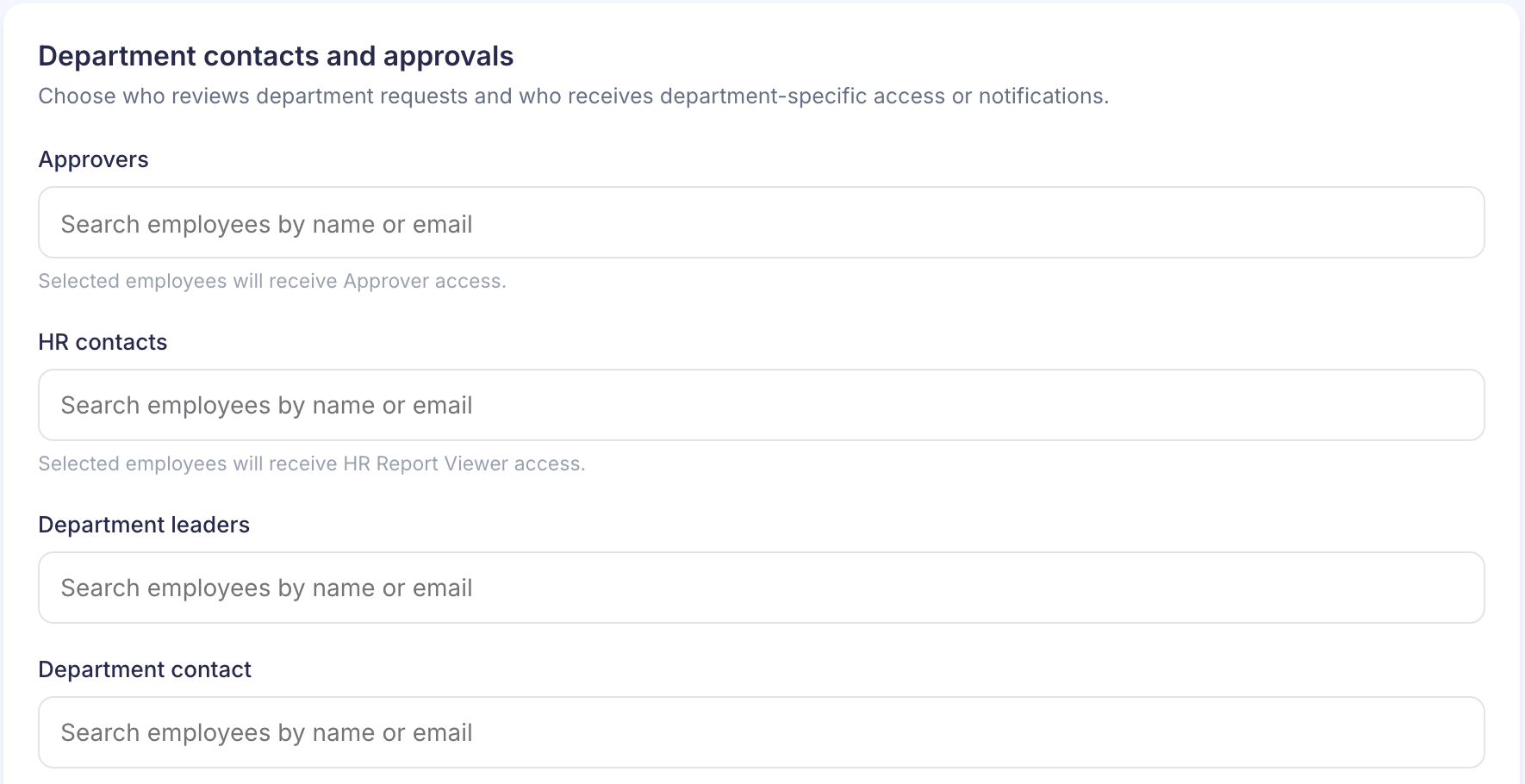
Under Department contacts and approvals, search for people by name or email:
- Approvers: each person gets Approver access.
- HR contacts: each person gets HR Report Viewer access.
- Department leaders
- Department contact: one person only.
-
Under Department email addresses, add a Broadcast email and a CC email if you use them. Both are optional.
-
Select Create department.
If you added approvers or HR contacts, a box called This will change account access lists who gets which access. Select Save and update access to go ahead, or Go back to change your choices.
You’ll see Department created and the list again.
Edit a department
Open the department’s menu and select Edit. Make your changes and select Save changes. Until you change something, the footer says “No changes to save.”
- Removing someone from Approvers takes away their Approver access completely, even if they also approve for another department.
- Removing someone from HR contacts doesn’t take away their HR Report Viewer access. Check their access in Roles and permissions.
Deactivate a department
- Open the department’s menu and select Deactivate.
- The box Deactivate Customer Success? says employees can no longer be assigned to it. Move anyone in it to another department first, by uploading their rows with the new department name.
- Select Deactivate department.
You’ll see Department deactivated. The department leaves the list, and its approvers lose their Approver access.
You can’t reactivate a department from this page. Its name is free again, so you can create a new department with the same name. An employee file that names it creates a new department too.
If something goes wrong
“A department with this name already exists.” Another active department has this name. Choose a different one.
“Your changes were not saved. If the name or description contains emoji or non-Latin characters, remove them and try again.” Take out emoji and characters outside the Latin alphabet, then save again.
“Enter a valid department distribution email.” or “Enter a valid CC email.” Fix the address, or leave the field empty.
“Add at least one HR contact and one department leader.” Your company requires both on every department. Add them and save again.
“Department not found” It may have been deactivated, or you may not have access to it. Select Back to Departments.
“We couldn’t confirm whether the department was saved. Reload it before trying again.” Reload the list before saving again, so you don’t create the department twice.