
Create an admin role
Go to Admin → Roles and permissions → Roles, select Create role, name it, tick its permissions and select Create role. Nobody has it until you assign it.
A role is a named set of permissions for one job, such as “Awards coordinator”. You create the role once, then give it to the people who do that job.
- Go to Admin → Roles and permissions and open the Roles tab.
- Select Create role.
- Enter a Role name of up to 45 characters. It must be different from your other roles’ names.
- Add a Description if you like, up to 500 characters. It helps other admins pick the right role.
- Tick the permissions the role should have. They’re grouped into Administration, Recognition and rewards and Wellness. Select all ticks a whole group. Pick at least one.
- Check Role summary on the right. It lists what employees with this role can do. Then select Create role.
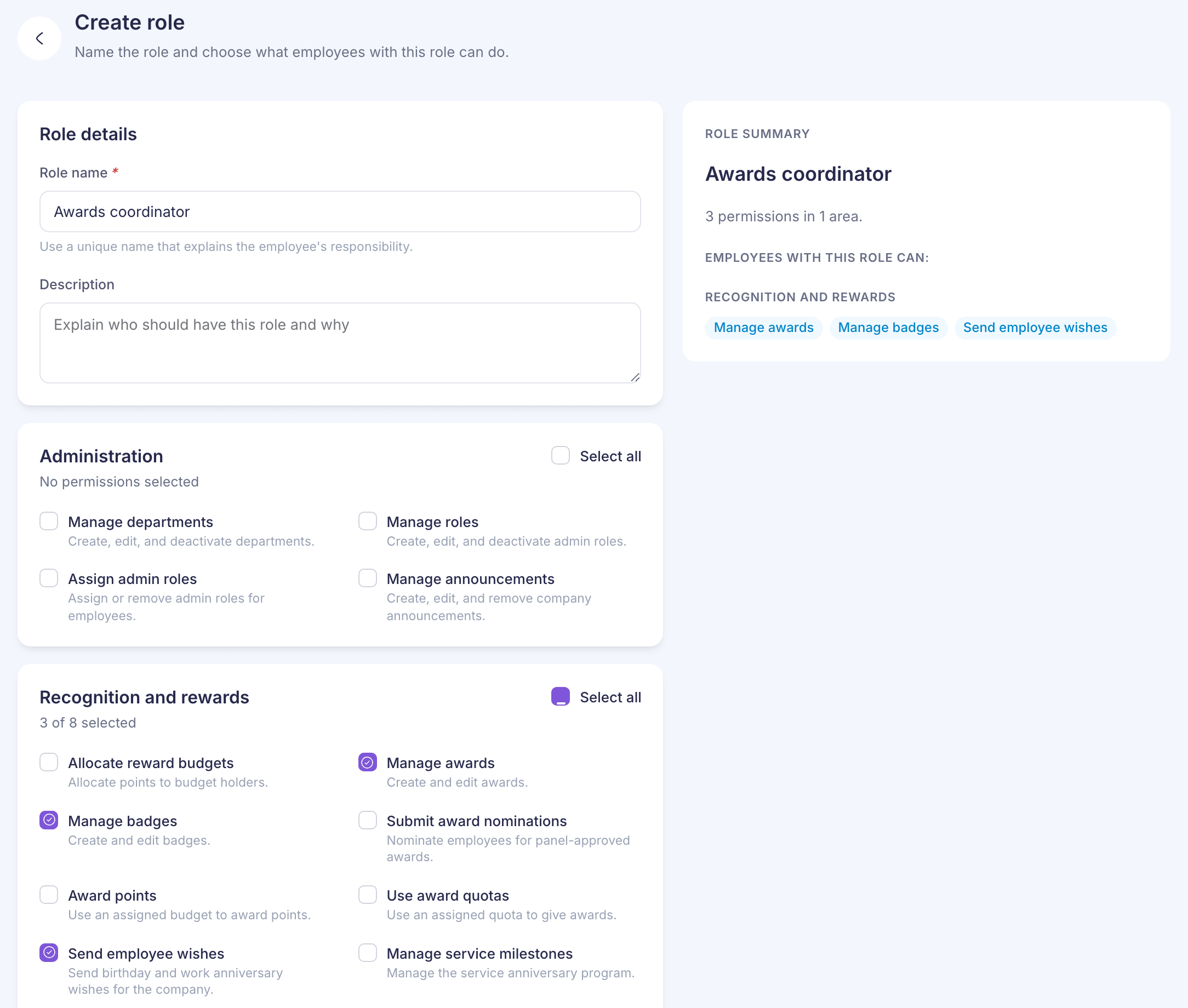
The role is ready to assign straight away. What each permission allows is in Admin access and permissions.
If saving fails with “If the name or description contains emoji or non-Latin characters, remove them and try again”, do that and save again.
Edit a role
On the Roles tab, open the actions menu in the role’s row and choose Edit. Changes apply to everyone who has the role, so check the Assigned employees column first. Select Save changes when you’re done.
- “This role includes Pulse access and cannot be edited here”: the role has Pulse permissions this page can’t show, and saving would remove them. Contact support to change this role.
- “This role includes a permission that cannot be managed on this page.”: you can still edit the role. The permission you can’t see is kept when you save.
Deactivate a role
There’s no way to delete a role. You deactivate it instead.
- Remove the role from everyone who has it first. On the Employees tab, use Change roles for each person.
- On the Roles tab, open the actions menu in the role’s row and choose Deactivate.
- Check how many employees the dialog says have the role, then select Deactivate role.
Do step 1 first. Deactivating stops new assignments, but people who already have the role keep its access. They’ll also be blocked in Change roles with “Inactive role still grants access”. Then the only way to fix it is Remove all admin roles for that person, followed by assigning the roles they should keep.
You can’t reactivate a role from the dashboard. Contact support if you need one back.
Finding a role
The Roles tab shows active roles only. Search by name or description, or filter Assignment status by Assigned or Not assigned. If two roles share a name, the Assigned employees column shows “Count unavailable because role names are not unique”.