
Pin or remove an announcement
In Admin → Communications → Announcements, open an announcement's menu and select Pin to top, Unpin or Remove. Your company can pin one Vantage Recognition announcement at a time.
Admin → Communications → Announcements lists your company’s announcements, with the feed each one is in under Destination. Search by title to find one. Each row’s menu has the actions below. There’s no Edit: to change an announcement, remove it and publish a new one.
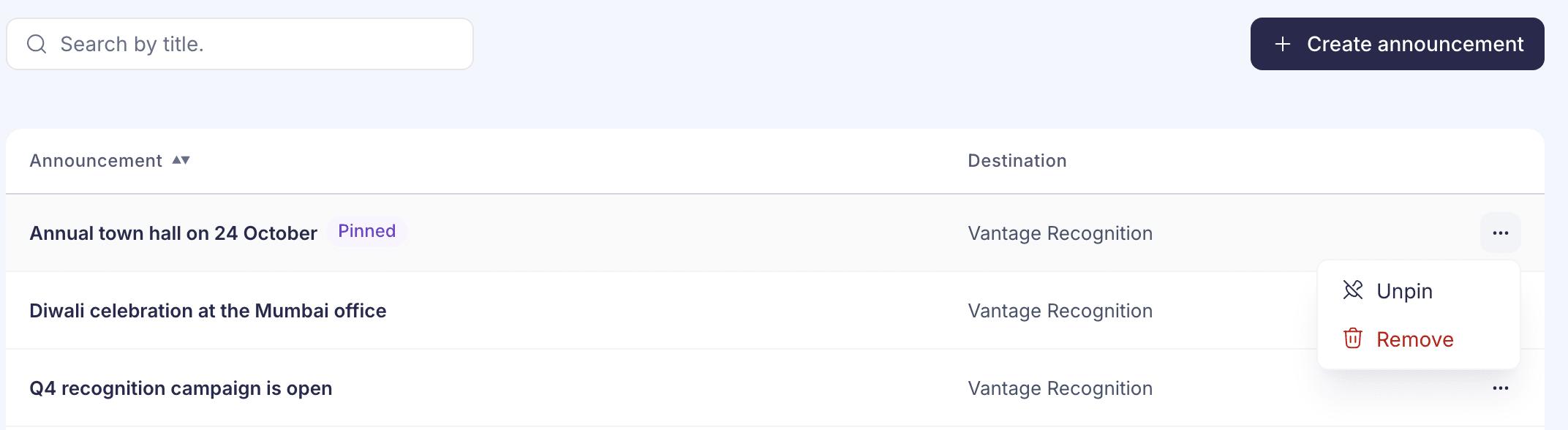
Pin an announcement to the top
Open the announcement’s menu and select Pin to top. You’ll see Announcement pinned, and the row gets a Pinned tag. It now shows first in the Vantage Recognition feed for everyone who received it. Pinning doesn’t send it to anyone new.
- Your company has one pin. If another announcement is already pinned, you’ll see Announcement wasn’t pinned. Unpin that one first.
- Only Vantage Recognition announcements can be pinned. Vantage Fit rows have no Pin to top.
- Any admin who can post announcements can unpin one, including one someone else pinned.
To unpin, open the menu and select Unpin. The announcement goes back to its usual place in the feed.
Remove an announcement
- Open the announcement’s menu and select Remove.
- The box Remove announcement says the announcement will become inactive and should no longer appear in the employee feed. Select Remove announcement.
You’ll see Announcement removed. You can’t restore it from this page, and emails that were already sent can’t be recalled.
If something goes wrong
“Some announcements are missing from this list.” One of the feeds didn’t load. Select Try again.
“We couldn’t confirm whether the announcement was removed” Reload the list and check the employee feed before you try again.
“You don’t have permission to manage announcements.” Ask a super admin for the Manage announcements permission.