
Send a company announcement
Go to Admin → Communications → Announcements and select Create announcement. Write it, choose the delivery and recipients, then select Publish announcement. You can't edit an announcement once it's published.
Announcements appear in the employee feed, are emailed, or both. Go to Admin → Communications, open Announcements and select Create announcement. Nothing is saved until you publish, and you can’t edit an announcement afterwards.
Before you start
- To post in the Vantage Recognition feed, you need to be a super admin or have the Manage announcements permission.
- The Vantage Fit feed is there if your company has Vantage Fit. Super admins, Vantage Fit admins and HR admins with Manage announcements can post to it.
Steps
-
Under Employee feed at the top, choose Vantage Recognition or Vantage Fit. You only see the feeds you can post to.
-
Enter a Title of up to 80 characters and a Message of up to 2,000 characters.
If your company has AI writing turned on, you’ll also see Generate with AI. Describe the announcement in at least 30 characters, pick a Tone and select Generate draft. The draft replaces your title and message, so read it before publishing. Improve writing under the message rewrites what you’ve typed.
-
Under Attachments, choose one kind:
- Images: up to 4. JPG, PNG, GIF or WebP, 5 MB each.
- Video: one MP4 or MOV, up to 5 MB.
- PDF: one, up to 10 pages and 5 MB. Add a Document title of up to 25 characters. Employees see it on the PDF in their feed.
To switch kinds, remove what you’ve attached first.
-
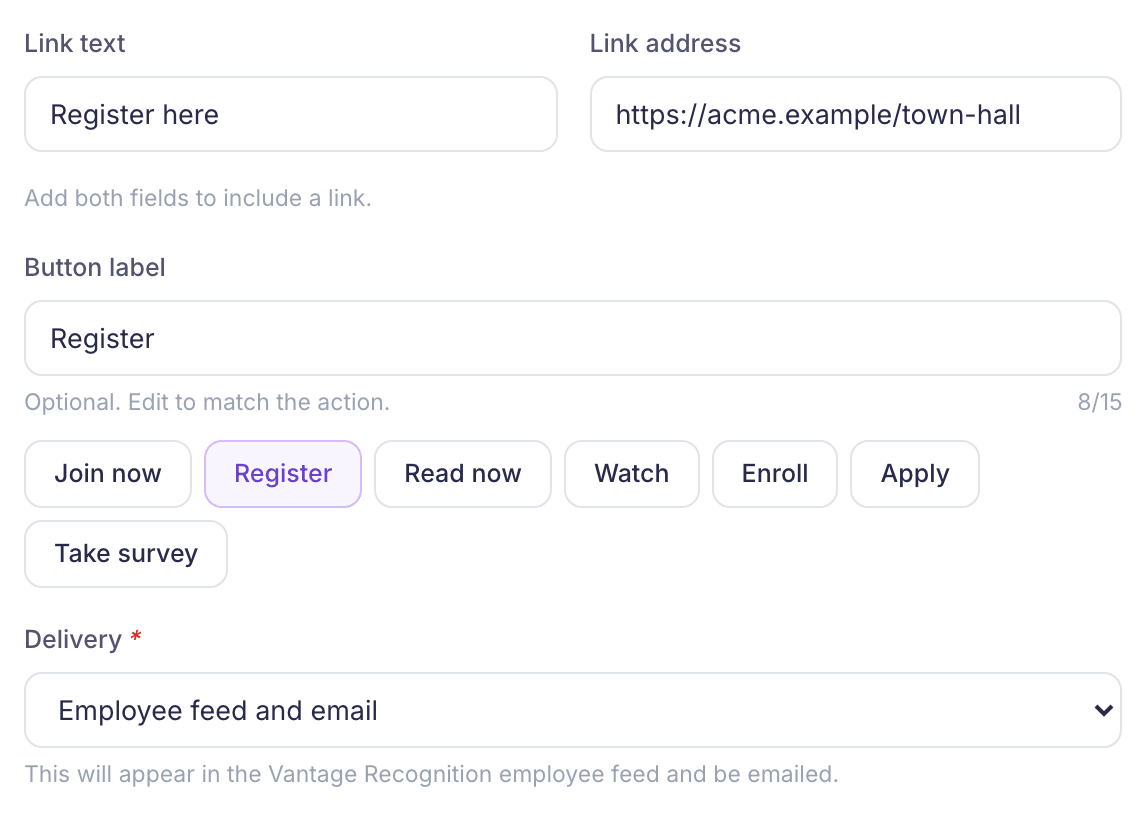
To add a link, fill in both Link text (up to 25 characters) and Link address. The address must start with http:// or https://. Button label is the text on the link’s button. It’s Learn More unless you change it or pick a suggestion such as Register.
-
Choose the Delivery: Employee feed and email, which is the default, Employee feed only or Email only. Vantage Fit announcements always go to the feed only.
-
Under Recipients, choose All employees, or Employees matching conditions and select Add a condition. You can narrow by Department, Country and City. The count shows how many people will get it. It’s checked again when you publish.
-
Check the preview on the right, then select Publish announcement.
If you chose All employees, a box asks Send to all 140 employees? It says what will happen, for example “It will appear in their feed and be emailed to them. This can’t be undone.” Select Send.
What happens next
You’ll see Announcement is being published. It’s sent in the background, so check the list before you try again.
- Feed announcements show in the chosen feed for the people you picked. In the Vantage Fit feed, only people who use Vantage Fit see it.
- Emails go to each person’s work email, with your attachments.
- To change an announcement, remove it and publish a new one. Emails that were already sent can’t be recalled. See Pin or remove an announcement.
Start from an example
Admin → Communications → Overview has examples. Launch a recognition campaign opens a new announcement with suggested wording that you can change. The email and push notification examples open the Vantage Fit composers, so they only work if your company has Vantage Fit. Email layouts is also for Vantage Fit emails.
If something goes wrong
“You cannot publish announcements” You don’t have permission to post. Ask a super admin to give you the Manage announcements permission.
“No employees match these conditions.” Widen your conditions, or choose All employees.
“Add at least one condition, or choose all employees.” You picked Employees matching conditions without finishing a condition.
“Photo.png is over the 5 MB limit.” or “Handbook.pdf has 14 pages. Upload a PDF with 10 pages or fewer.” Use a smaller file.
“Enter a full link starting with http:// or https://.” Fix the address, or clear both link fields.
“An attachment is still uploading” Wait for the upload to finish, then publish.
“Daily AI request limit reached. Limit resets at midnight.” Write the text yourself, or try again tomorrow.
“We couldn’t confirm whether the announcement was published” Check the announcement list before you publish again, so employees don’t get it twice.