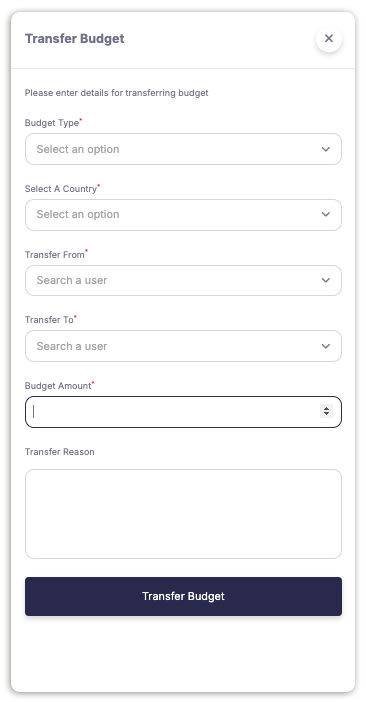
Budget management is one of the exclusive privileges of HR administrators. Within the Vantage Recognition Dashboard, you can efficiently Allocate, Bulk Allocate, Deallocate, and Transfer budgets to different managerial accounts as per your company’s needs. Apart from these, the Dashboard also shows an overview of the budget utilization by each manager purchased, allocated, utilized, and remaining.
To manage the budget efficiently, follow the steps given below:
Step 1: Visit the Admin Dashboard and select Vantage Recognition from the top header section of the window.
Step 2: Select Budget on the left panel of the window,
Step 3: Here, you’d have the options to Allocate, Bulk allocate, Deallocate, and Transfer on the top right corner of the window.
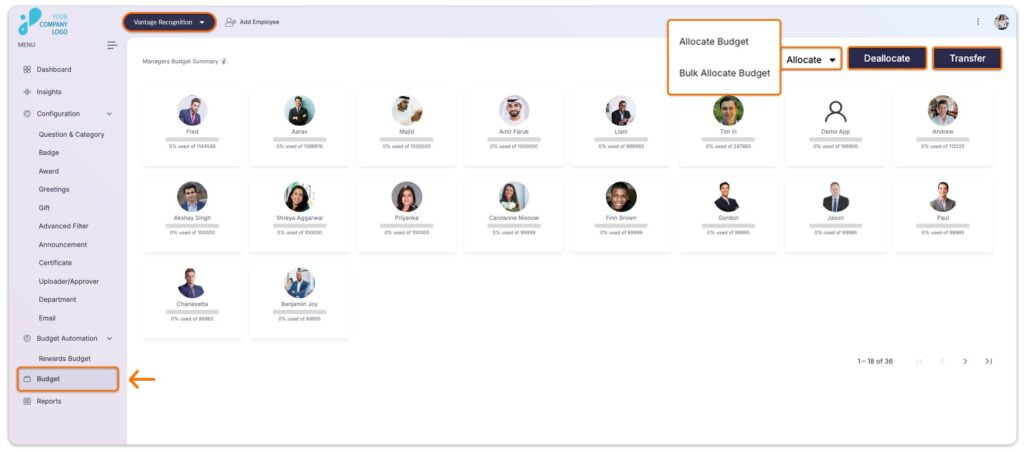
Allocate Budget.
Assigning the budget to an individual grants them the authority to process and distribute points to the awardees. Follow the steps below to allocate the budget to individuals:
Step 4: Click on the Allocate button and from the drop down select ‘Allocate Budget’ located at the top right corner of the window.
Step 5: Now, enter details such as
-
Budget Type: Choose the budget for which allocation is required. Authorized users can have up to three additional budgets, aside from the rewards budget, to be used for various initiatives such as dining, special gifts, and more.
-
Country,
-
Allocation recipient,
-
Budget Amount,
-
Reason for allocation.
Step 6: Finally, click on Allocate Budget to complete the process.
Bulk Allocate Budget.
The Bulk Budget Allocation feature can save you a significant amount of time by allowing you to distribute available points to multiple users at once.
To Bulk Allocate the budget, follow the steps outlined below:
Step 4: Click on the Allocate option in the top right corner of the window, From the drop-down, select the Bulk Allocate Budget.
Step 5: Now select the Country from the drop-down list.
Step 6: Upload the CSV file containing the details of all the users you want to allocate the budget to.
Step 7: Finally, click on the Submit button to complete the process.
Note: Download the sample for reference by clicking on the Download Sample CSV.
Deallocate Budget.
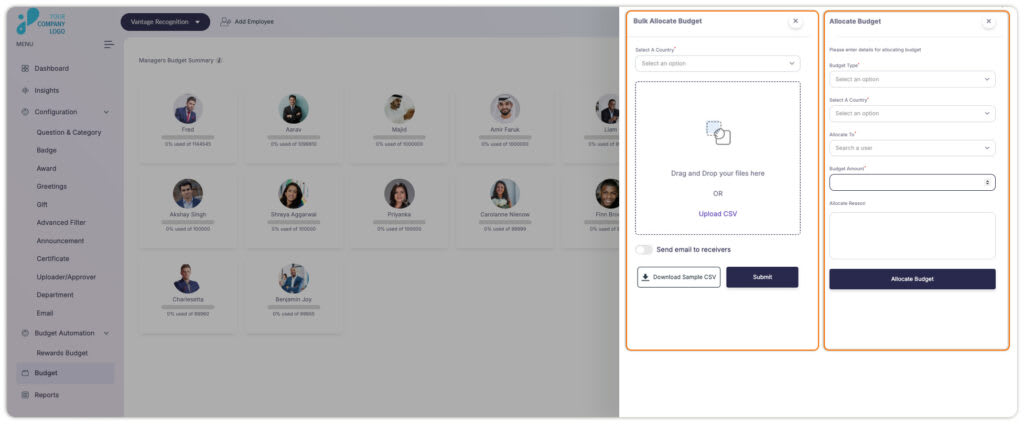
If you need to reclaim an allocated budget from a manager or team leader, our Deallocate Budget option enables you to do so. Reasons for deallocation may differ, such as when a manager leaves the company, requiring budget retrieval from their wallet.
Sometimes, the budget allocated for a specific period remains unused. To optimize resource utilization, companies often choose to deallocate the unutilized balance and redirect it back to the central wallet
To deallocate the budget, follow the steps outlined below:
Step 4: Click on the Deallocate button located at the top right corner of the window.
Step 5: In the subsequent window, fill in the required fields such as:
-
Country
-
User from whom you want to withdraw the budget and
-
Reason for withdrawing.
Step 6: Finally, click on Deallocate Budget to complete the process.
Note: The entire budget will be deallocated from the selected user.
Transfer Budget.
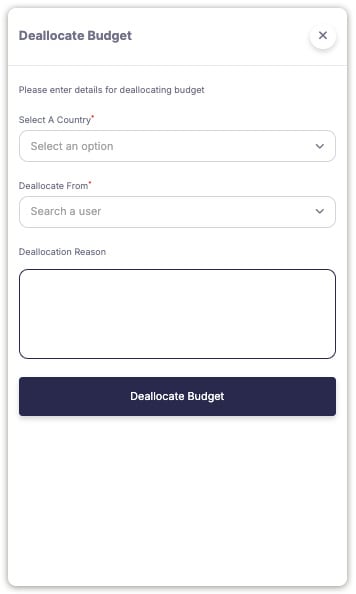
The Budget Transfer feature allows you to seamlessly move budget amounts between users ensuring efficient resource management.
To Transfer the budget, follow these steps:
Step 4: Click on the Transfer option in the top right corner of the window.
Step 5: In the next window fill in the details such as:
-
Budget type: Select the budget you want to transfer. Designated users can have up to 3 additional budgets apart from the Rewards budget.
-
Country
-
Transfer from: Select the source user from which the budget will be deducted.
-
Transfer To: Identify the target user that will receive the budget.
-
Budget amount: Amount you want to transfer
-
Transfer reason: Specify the reason of the transfer.
Step 6: Finally click on the Transfer Budget button.