The Service Tenure Awards celebrate the tenure of employees who have worked with the company for a considerable amount of time. It facilitates peers to give out anniversary wishes and congratulatory posts.
There are two types of service awards in Vantage Recognition: Long Service Awards (LSA) and Service Yearbook.
Long service awards recognize employee tenure. They are usually accompanied with e-certificates or monetary awards.
Service Yearbook is a personalized online yearbook that allows peers to collect and share memories for an employee’s service anniversary.
Configuring Service Tenure Awards
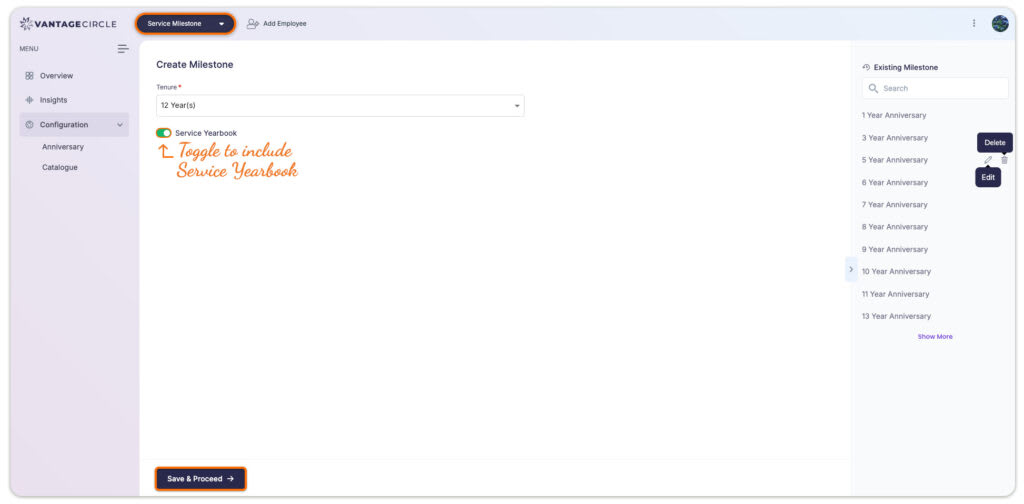
Step 1: Visit the Admin Dashboard
Step 2: Select Service Milestone from the top header section of the window.
Step 3: In the left panel, under Configuration, select Anniversary.
-
Specify the desired tenure in years (e.g., 1, 2, or any other number).
-
Enable the toggle to include Service Yearbook and E-Certificate for the selected service tenure, if required.
Step 4: Click on Next to proceed.
Customizing the Award:
Step 5: Select the award icon and background from the available stock images or upload your own custom image.
Step 6: Click on Next to proceed.
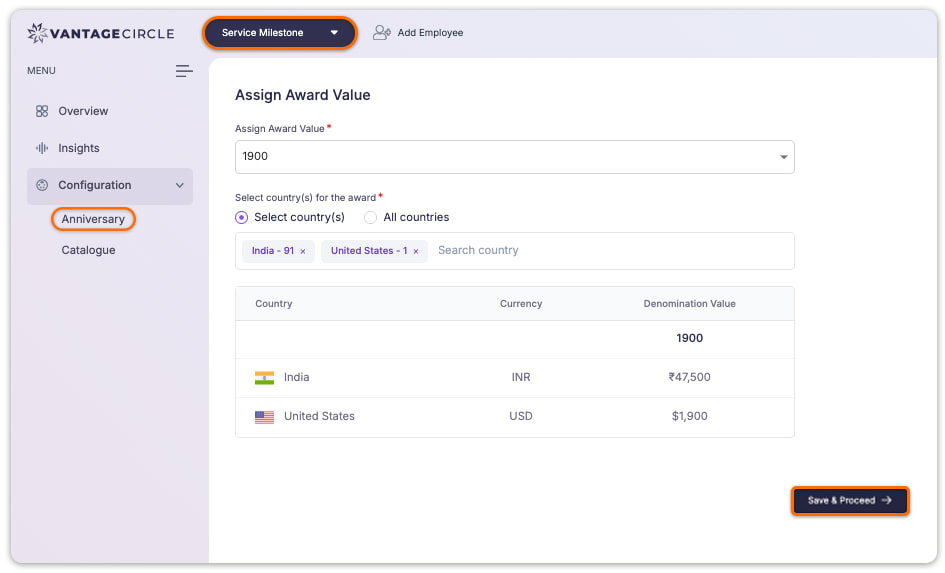
Step 7: In this window, fill in the following details:
-
Award Value
-
Country for which the service award will be available
-
Click on Update to continue.
Note: If you enable the toggle for the Service Yearbook in step 3, you will be prompted to customize the yearbook in the following step.
Customizing the Service Yearbook (If Applicable):
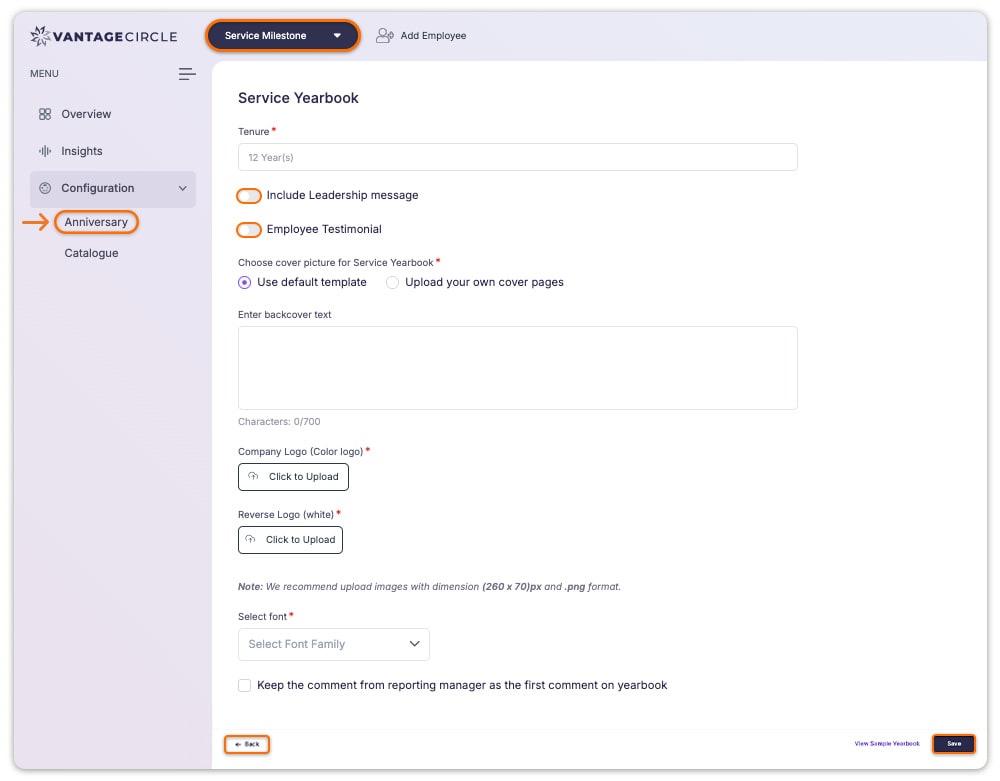
Step 8: Include Leadership Message: Enable the toggle if you want to include messages from the organization’s leaders.
-
Enter the leader’s message within the text limit.
-
Input the designation, name, and profile image of the leader in the designated spaces and click Save to save the message.
-
To include additional messages, click on ‘Add another leader’s message’.
Step 9: Choose a Template:
Select between, Default Template or Upload Your Own Cover Pages.
Use Default Template:
-
Input the back cover text in the provided space.
-
Upload the color company logo and the reverse logo (white).
-
Choose a font style.
-
Tick the checkbox to include the comment from the reporting manager as the first comment in the yearbook.
Note: Images should be 260 x 70 px and in .png format.
OR
Upload Your Own Cover Pages:
- Upload the front page, back page, and other yearbook page backgrounds, as well as the company logo.
Note: Click the i button next to each field for details on acceptable file sizes.
-
Choose a font style.
-
Tick the checkbox to include the comment from the reporting manager as the first comment in the yearbook.
Step 10: Click on Save to create and save the Milestone Configuration.