
Run an exit survey
Create survey → Exit survey sends a survey to a list of people who have left or are serving notice. Add them from a CSV or one at a time, set the dates it's open, and each person gets a personal link by email. Exit survey answers always show the person's name.
An exit survey goes to a list of people you name, and each of them answers through a personal link without signing in. You can survey people who have already left, or people serving their notice.
Before you start
- Have your list ready. For each person you need their name, an email address, their department and their last working day.
- For people who have left, use their personal email. Their work email may already be closed.
Steps
-
Go to Pulse → Surveys → Create survey. Choose Exit survey and select Continue.
-
Template. Select one template, or Create your own to start with no questions.
-
Survey details. Enter a Survey name, for example “Exit survey 2026”. Add a Description (optional) if you like.
-
Recipients. Choose the Audience first, because changing it later clears everyone you’ve added.
- Ex-employees: people who have already left. They get the link on their personal email.
- Active employees: people serving notice. You pick them from your employee list, and they get the link on their work email.
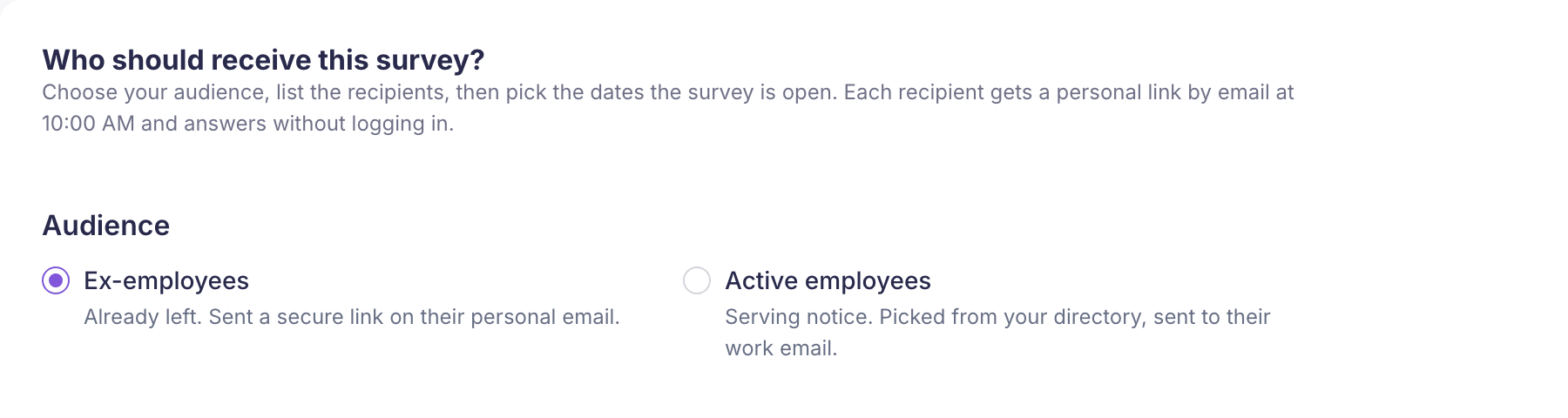
Then add the people, using a file, one at a time, or both:
- Upload a file. Select Download sample and fill in a copy, keeping its column headings. Then use Choose a CSV file. Each row shows Ready or the reason it can’t be sent.
- Add manually. For an ex-employee, enter their name, personal email and last working day, which must be in the last 30 days. For an active employee, search for them by name or email, then enter their department and a last working day after today.
Once you’ve uploaded a file, Add manually goes away. People you added by hand before the upload stay.
Last, set the Survey dates. Starts on can’t be in the past. The survey is open from the start date to the end of the Ends on date. By default it’s open for 14 days.
-
Questions. Check the questions, and use Edit questions to add or remove some.
-
Invitation. Edit the email each person gets with their personal link.
-
Review & launch. Check everything, then select Create survey.
The CSV file
The sample has these columns: Name, Personal Email, Department, Employee Code, Designation, Location, Country, Reporting Manager and Last Working Date.
- Name, Personal Email, Department and Last Working Date must be filled in on every row.
- Dates can be written as 2026-05-31, 31/05/2026, 31-05-2026 or 05/31/2026.
- Any other column makes the whole file fail with “Unsupported columns found”.
- The same email twice in one file is marked “Duplicate in the uploaded file”, and only the first row is used.
What happens next
The page says Exit survey created. Each recipient gets a personal link by email at 10:00 AM while the survey is open. They answer without signing in.
The link only works between the survey dates. Before the start date it says “This survey is not currently active.” After the end date it says “This survey has ended.”
Exit surveys don’t send reminders, and Send emails now isn’t available for them. You can’t add people to an exit survey after it’s created. For the next group of leavers, create another exit survey.
The survey shows in Pulse → Surveys with the type Lifecycle. For the answers, see the Read results hub.
About privacy
Exit survey answers always show the person’s name. The Response privacy section says “Responses to an exit survey always show the employee’s name.” There’s no anonymous option, so tell people this in your invitation.
If something goes wrong
“No row in this file can be sent. Fix the rows marked below and upload it again.” Every row has a problem. Each row gives its reason, such as “personal_email is invalid.” or “last_working_date has an unsupported format.”. Fix the file and upload it again.
“Missing required columns” or “Unsupported columns found” The column headings don’t match the sample. Download the sample again and copy your data into it.
“Choose a date in the last 30 days, before today.” An ex-employee’s last working day has to be between 30 days ago and yesterday. Older leavers can’t be added by hand.
“Choose a date after today.” An active employee’s last working day has to be in the future. If they’ve already left, switch the audience to Ex-employees.
“Add at least one ex-employee” or “Add at least one active employee” The list is empty. Upload a CSV or add someone manually before you continue.