
Manage running surveys
Pulse → Surveys lists every survey with its status. Use the menu at the end of a row to view details, duplicate, pause, send emails now, send a reminder, download the report or end the survey.
Go to Pulse → Surveys. Every survey is listed with its Type, Status, Schedule, Questions and Employees. Use All types and All statuses to filter, or search by survey name.
A survey’s status is one of these:
- Scheduled: created, but its start date hasn’t come yet.
- Live: sending questions and collecting answers. Lifecycle surveys stay Live until you end them.
- Paused: stopped for now.
- Completed: ended, either on its end date or because someone ended it.
Actions on a survey
Select ⋯ at the end of a row. The menu only shows what that survey allows. The same actions are on the survey’s details page, which opens when you select its name.
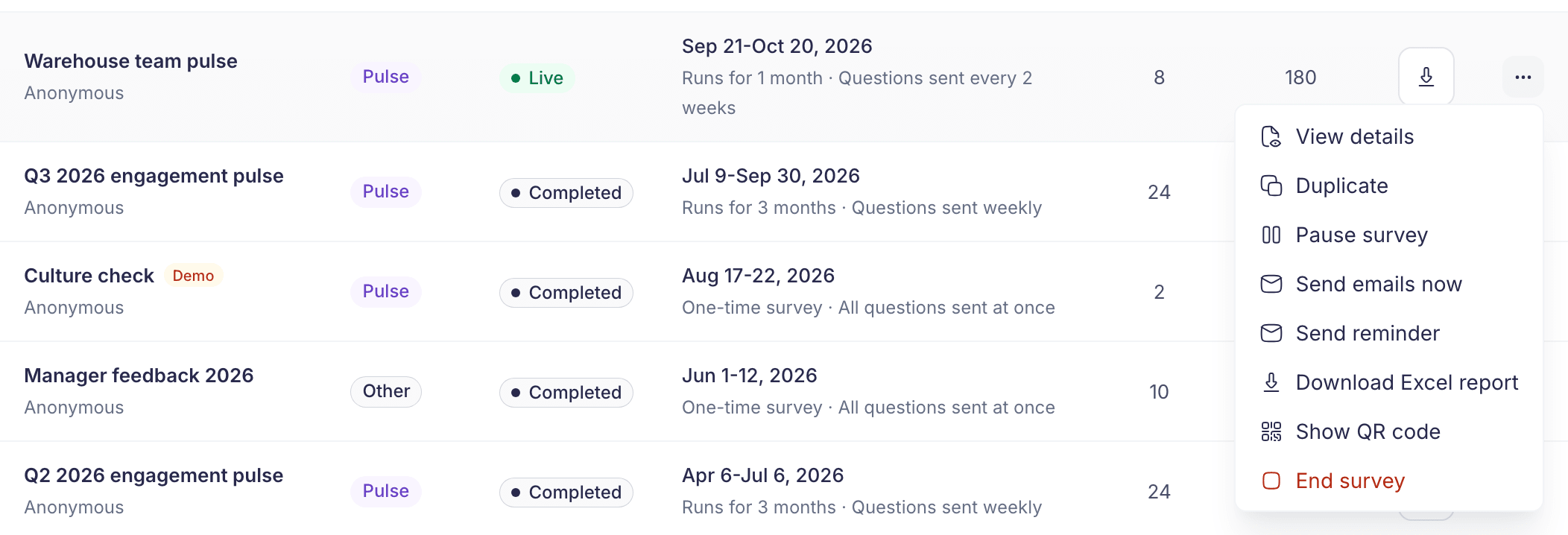
| Action | Shown for | What it does |
|---|---|---|
| View details | Every survey | Shows the schedule, setup and questions. Nothing can be changed here. |
| Duplicate | Pulse surveys | Opens Create survey with a copy, as described below |
| Pause survey / Resume survey | Live or paused surveys | Stops the survey, or starts it again |
| Send emails now | Live surveys, except lifecycle and exit surveys | Sends the current questions straight away |
| Send reminder | Live Pulse surveys that don’t send every day | Emails people who haven’t answered |
| Download Excel report | Live, paused and completed surveys | Downloads the answers as a spreadsheet |
| Show QR code | Surveys with a shared link and QR code | Shows the code, with Download printable PDF |
| End survey | Live and paused surveys | Stops the survey for good |
| Cancel scheduled survey | Scheduled surveys | Stops it before anyone gets it |
| Delete demo survey | Demo surveys | Deletes it and all its answers |
Duplicate
Duplicate is the quickest way to rerun a survey. The copy is called “Copy of” the original. It keeps the questions, the response privacy, the shared link and QR code setting, and the shape of the schedule, moved to start today. A copy of a demo survey is a demo survey too.
It doesn’t copy the employees, the send time or the template. Questions that are no longer in your question bank can’t be copied, and the Survey details step lists them.
Pause and resume
Pausing stops the survey collecting answers straight away. Answers already collected are kept.
The confirmation box warns that a paused survey leaves the list and can’t be resumed, ended or downloaded from there. If the survey still shows as Paused, Resume survey starts it again, as long as its end date hasn’t passed. Once the end date passes, a paused survey becomes Completed.
If you only want to stop a survey, End survey is the safer choice.
Send emails now
Questions normally go out at the send time in each employee’s time zone. Send emails now sends the current questions to every invited employee straight away. People who already got this round’s email don’t get it again.
Send reminder
Send reminder emails everyone who hasn’t answered the questions they’ve been sent. People who have answered everything don’t get an email. After a reminder goes out, the option is greyed out for 15 minutes.
Pulse also sends reminders on its own. By default, someone who hasn’t answered gets one reminder 3 days after their survey email. For a one-time survey, they get a second one 7 days after the email. Reminders you send count towards these.
Two rules apply to every reminder:
- No reminder goes out within 24 hours of the survey email.
- No reminder goes out when the next survey email is due within 24 hours.
That’s why surveys that send every day never get reminders, and why the option isn’t offered for them.
Download Excel report
What’s in the file depends on the survey’s privacy setting. For an Anonymous survey, it holds grouped results and written comments, and comments may still include identifying details. For a Names shown survey, it includes employee names, email addresses and individual answers, so store and share it securely.
End or cancel
End survey stops the survey for good. Employees can’t send any more answers, and you can’t restart it. Answers already sent are kept and stay in your reports. A repeating survey doesn’t start another cycle after you end it.
For a survey that hasn’t started, the option is Cancel scheduled survey. Nobody has received it yet, and it can’t be restarted.
What you can’t change
- Questions. They can’t be changed after the survey starts.
- Schedule. There’s no way to edit the dates, length or frequency of a survey at the moment. End it and use Duplicate to create a new one.
If you’re a reporting manager
The page says “You can view surveys, but you do not have permission to manage them.” You can use View details and Download Excel report. Everything else is hidden.
If something goes wrong
“Nobody was emailed” No one was due a reminder. The message gives the reason, for example “No reminder sent. Reminders go out 24 hours after a survey was sent, and not within 24 hours of the next batch.” Try again later.
“Survey has ended.” The survey stopped being live after the list loaded. The list reloads to show its current status.
“Survey end date has already passed.” You tried to resume a survey whose end date is over. Create a new survey instead.
“Permission Denied” Your role isn’t allowed to change surveys, even though the menu showed the option. Ask a super admin to check your permissions.
Survey emails didn’t arrive Check these in order:
- The survey is Live. Scheduled and paused surveys send nothing.
- The send time has passed in the employee’s own time zone.
- The employee was in the survey’s audience. Employees whose invitation to Vantage Circle is still pending aren’t included. See Choose who gets a survey.
- The employee hasn’t already answered everything. People who have finished get no more emails in that cycle.
If all four are fine, use Send emails now to send the current questions straight away.