
Choose who gets a survey
On the Employees step of Create survey, send the survey to all eligible employees, to employees matching conditions such as Department is Sales, or to specific people. Every survey needs at least 5 employees.
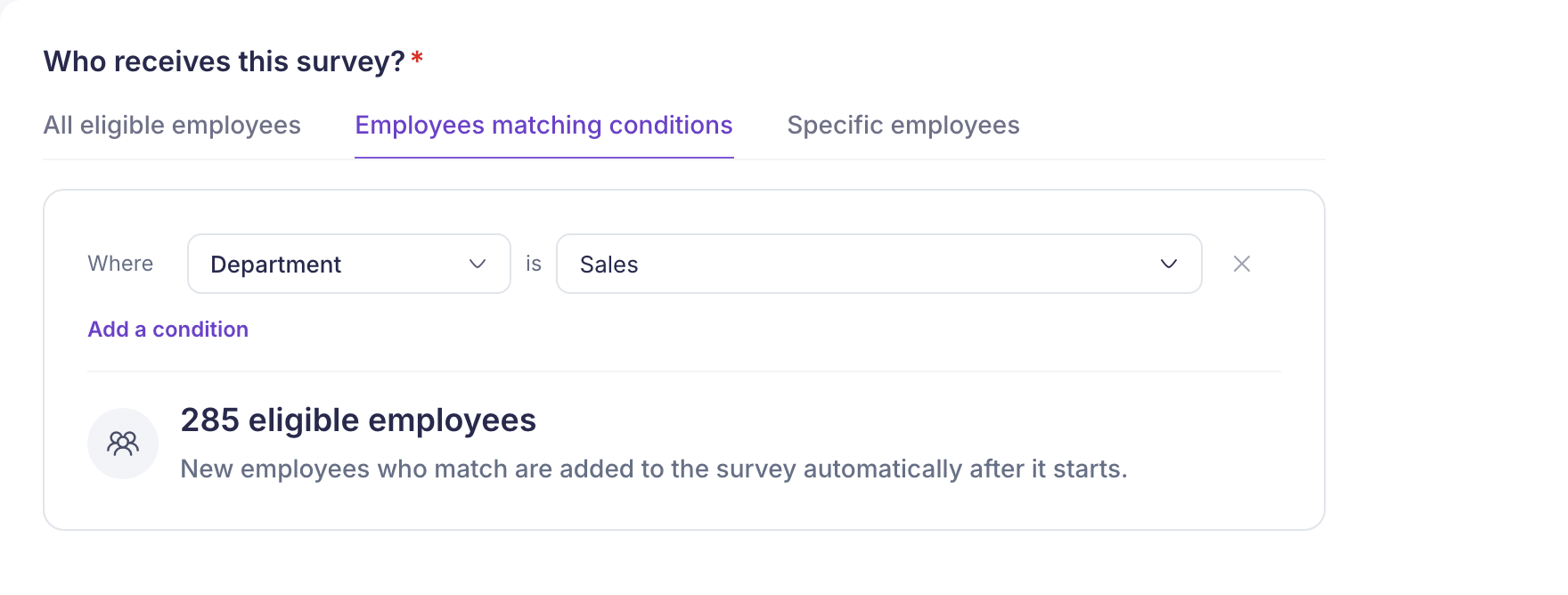
You choose who gets a survey on the Employees step of Create survey. Under Who receives this survey? there are three tabs: All eligible employees, Employees matching conditions and Specific employees. Whichever you pick, the survey has to reach at least 5 employees.
All eligible employees
Everyone who can take Pulse surveys gets it. The step shows how many that is, for example “2,140 eligible employees”. People who join later are added to the survey automatically after it starts.
Employees whose invitation to Vantage Circle is still pending aren’t included, so they aren’t counted either.
Employees matching conditions
Use this to survey one department, country or other group.
- Select Employees matching conditions, then Add a condition.
- In the row that starts with Where, choose an attribute, such as Department.
- Under Choose values, tick one or more values, such as Sales. The count updates as you go.
- To narrow it further, select Add a condition again. Extra rows start with And.
How the rules combine:
- Values in one row are “or”. Department is Sales and Support reaches both teams.
- Separate rows are “and”. Department is Sales and Country is India reaches only the Sales team in India.
- Each attribute can be used once.
The attributes you can pick come from your employee records. Pulse can offer Department, Sub Department, Business Unit, Grade Group, Employee Type, Country, City, Gender, Tenure, Reporting Manager, Designation, HRBP, HOD, Confirmation Status and Marital Status. An attribute only shows if at least one employee has a value for it. If you can’t find a group, check the employee details in your company account first.
People who join later and match your conditions are added to the survey automatically.
You can’t exclude a group. To leave one department out, add a Department condition and tick every department except that one.
Specific employees
Use this for a named list.
- Find employees searches by name, email or department. Pick each person from the results.
- Or upload a CSV. It needs one column named email, with one work email address per row. The file must be a .csv of 2 MB or less. Download sample CSV gives you the layout.
The CSV upload hides once you’ve picked people from search. It comes back if you remove them all.
Pulse checks the addresses against your employees once there are at least 5 of them. Addresses that don’t match anyone are listed as “did not match an employee and will be skipped”.
This list is fixed. People who join later aren’t added.
Before you continue
The Response privacy choice sits on the same step, below the employees. See Create a Pulse survey for what Anonymous and Names shown mean.
If you made the survey with Duplicate, its employees aren’t copied. The step says “Employees are not copied from” the original, and you choose them again.
If something goes wrong
“This audience is too small. A survey needs at least 5 employees so responses stay anonymous.” Widen your conditions or add more people. The server checks this again when you launch, so a survey for fewer than 5 people can’t be created.
“Add at least one condition, or choose all eligible employees.” You picked Employees matching conditions but haven’t finished a row. Add a value, or switch tabs.
“Finish the condition you started, or remove it.” A row has an attribute but no values. Choose values, or remove the row with the cross.
“No email addresses matched an employee.” None of the addresses in your list belong to an employee in your company account. Check you used work email addresses.
“Employee email addresses could not be checked. Try again.” The check didn’t finish. Wait a moment and continue again.