
Create a Pulse survey
Go to Pulse → Surveys → Create survey, choose Pulse survey and work through six steps. Your work is saved as a draft as you go, and nothing is sent until you launch.
Go to Pulse → Surveys → Create survey, choose Pulse survey and select Continue. The wizard has six steps. Nothing goes to employees until you select Launch survey at the end.
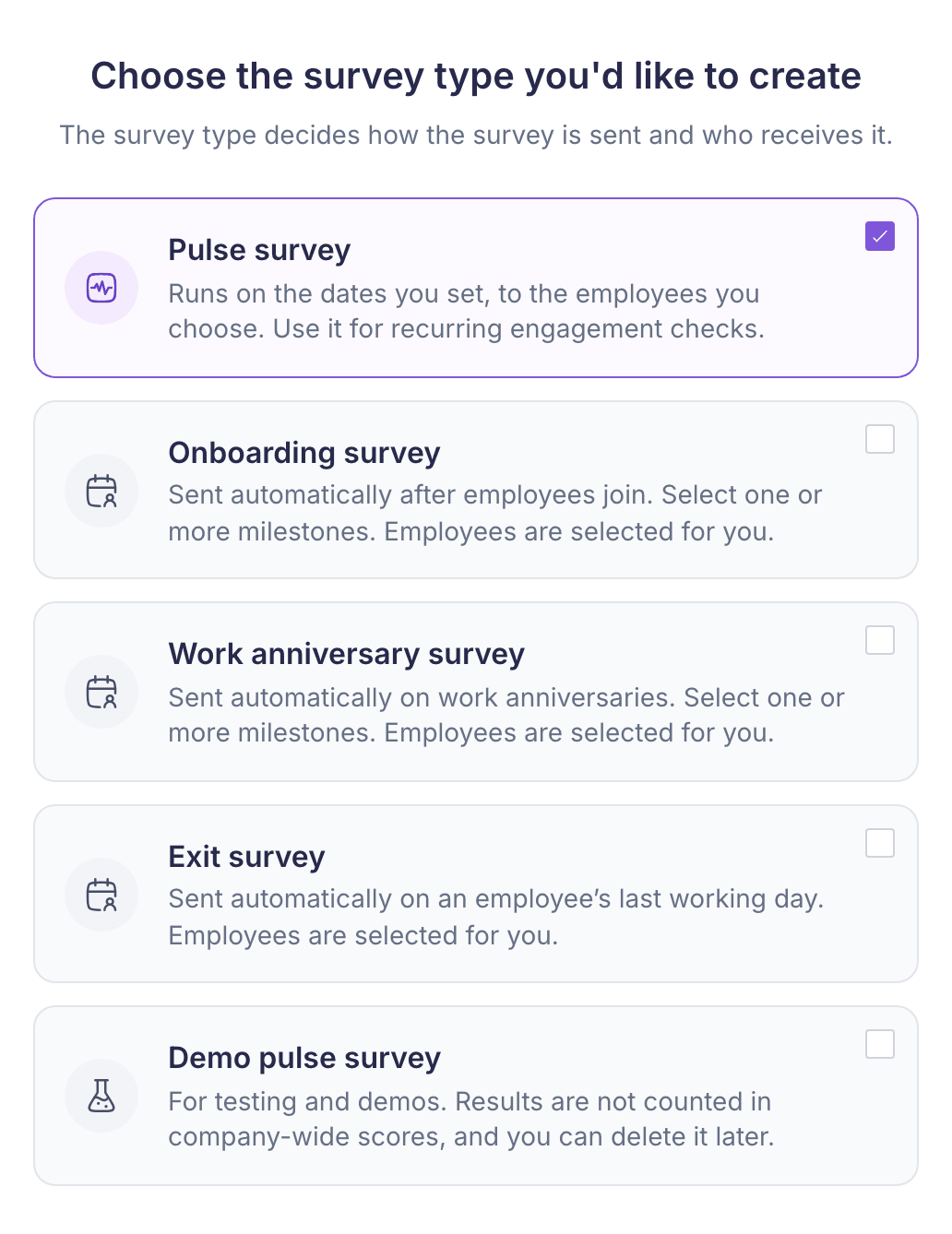
Choose Demo pulse survey instead if you’re only testing. Its results aren’t counted in company-wide scores. Onboarding, work anniversary and exit surveys are set up differently, because they’re sent automatically and pick their own employees.
Before you start
- Know who should get the survey. It has to reach at least 5 employees.
- If you want questions of your own, add them first in Pulse → Questions. That needs Pulse Pro.
Steps
-
Template. Select a template, or choose Create your own to start with no questions. A template’s questions become your starting list. Changing them here doesn’t change the template.
-
Survey details. Enter a Survey name. Employees see it in their invitation, so make it something they’ll recognise. Remove questions you don’t need, and add others from the Question bank beside the list. For each rating question, choose an Answer scale of 1–5 or 1–10, and decide whether it’s Must answer or Must comment. Turning on Must comment also turns on Must answer.
-
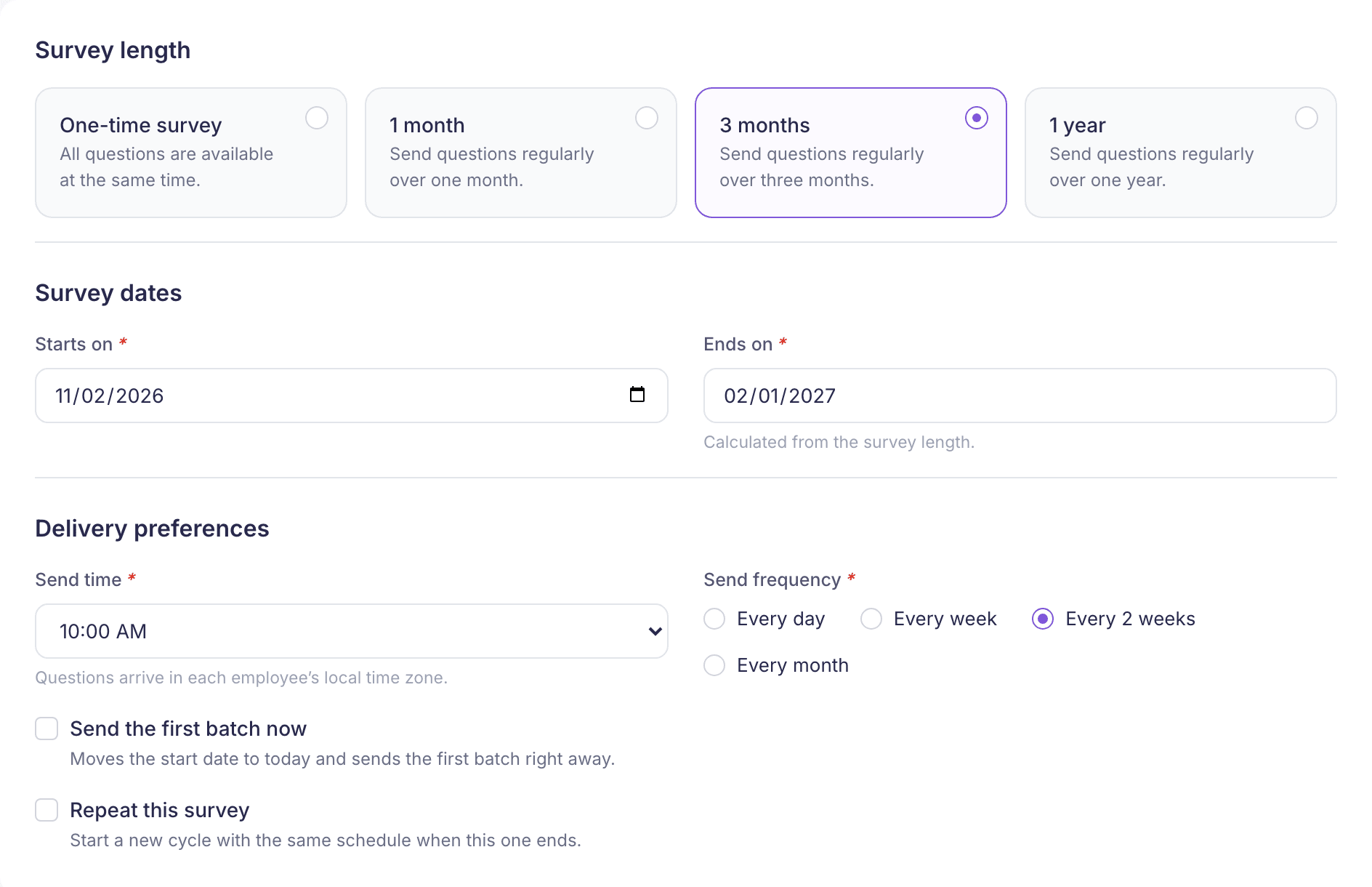
Schedule. Choose the Survey length: One-time survey, 1 month, 3 months or 1 year. Set Starts on and Send time.
- For a one-time survey, Ends on must be at least 5 days after the start date, and everyone gets all the questions at once.
- For longer surveys, the end date is set for you. Choose a Send frequency: every day, every week or every 2 weeks, or every month for 3-month and 1-year surveys. The questions are spread across those sends.
- Tick Send the survey now (or Send the first batch now) to send straight away instead of at the send time. This moves the start date to today.
- Tick Repeat this survey if you want a new cycle to start when this one ends.
-
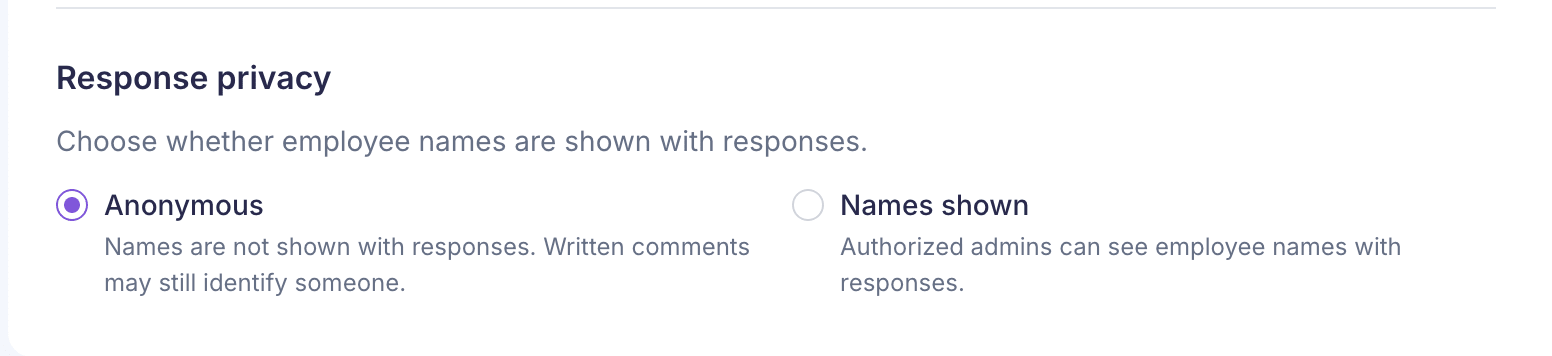
Employees. Choose All eligible employees, Employees matching conditions or Specific employees. Then choose the Response privacy: Anonymous, which is the default, or Names shown.
-
Invitation. The subject and message are filled in from the template, or from your company’s default invitation. Edit them if you like, then use Send test email to me to see what employees will get. If your company has kiosk surveys turned on, you’ll also see Use a shared link and QR code, for employees without a work email.
-
Review & launch. Check the summary. Select Edit next to any section to go back to it. Then select Launch survey. A box called Launch this survey? tells you how many employees will get it and when the first questions go out. Select Launch survey again to send it, or Keep reviewing to go back.
Drafts
Once your survey has a name or at least one question, it’s saved as a draft a moment after each change you make. Save as draft saves it straight away. The footer shows when it was last saved.
To pick up where you left off, open Create survey again and choose Pulse survey. Your saved drafts appear on the template step. Select Restore to carry on, or Discard to delete one. Each admin sees only their own drafts, and a draft is removed once its survey is launched.
A draft saved in the previous dashboard brings back only its name and privacy setting. You’ll need to pick the template and questions again.
What happens next
The page says Survey created and takes you back to your surveys after a few seconds. Questions arrive at the send time in each employee’s own time zone. If you used conditions, people who join later and match them are added to the survey automatically.
About the two privacy options
Anonymous hides names from results. Pulse still keeps track of who was invited and who has answered, so it can send reminders, and a written comment can still give someone away. Names shown lets admins with access see each person’s name next to their answers.
If your company allows anonymous surveys only, Names shown is greyed out. The screen says “Your company allows anonymous surveys only.”
If something goes wrong
“This audience is too small. A survey needs at least 5 employees so responses stay anonymous.” Widen your conditions or add more people.
There’s no Create survey button Reporting managers can view surveys but can’t create them. The page says “You can view surveys, but you do not have permission to manage them.” Ask an HR admin or a super admin.
“Permission Denied” The server turned the survey down because your role isn’t allowed to create surveys, even though the wizard let you fill it in. Ask a super admin to check your permissions.