
Create a badge
Go to Recognition → Badges → Create badge, fill in three short steps and select Create badge. Badges are a thank-you without reward points.
Go to Recognition → Badges and select Create badge. Badges let employees thank someone without giving reward points, so there’s no budget to set. The form has three steps: Details, Design and Certificate.
Details
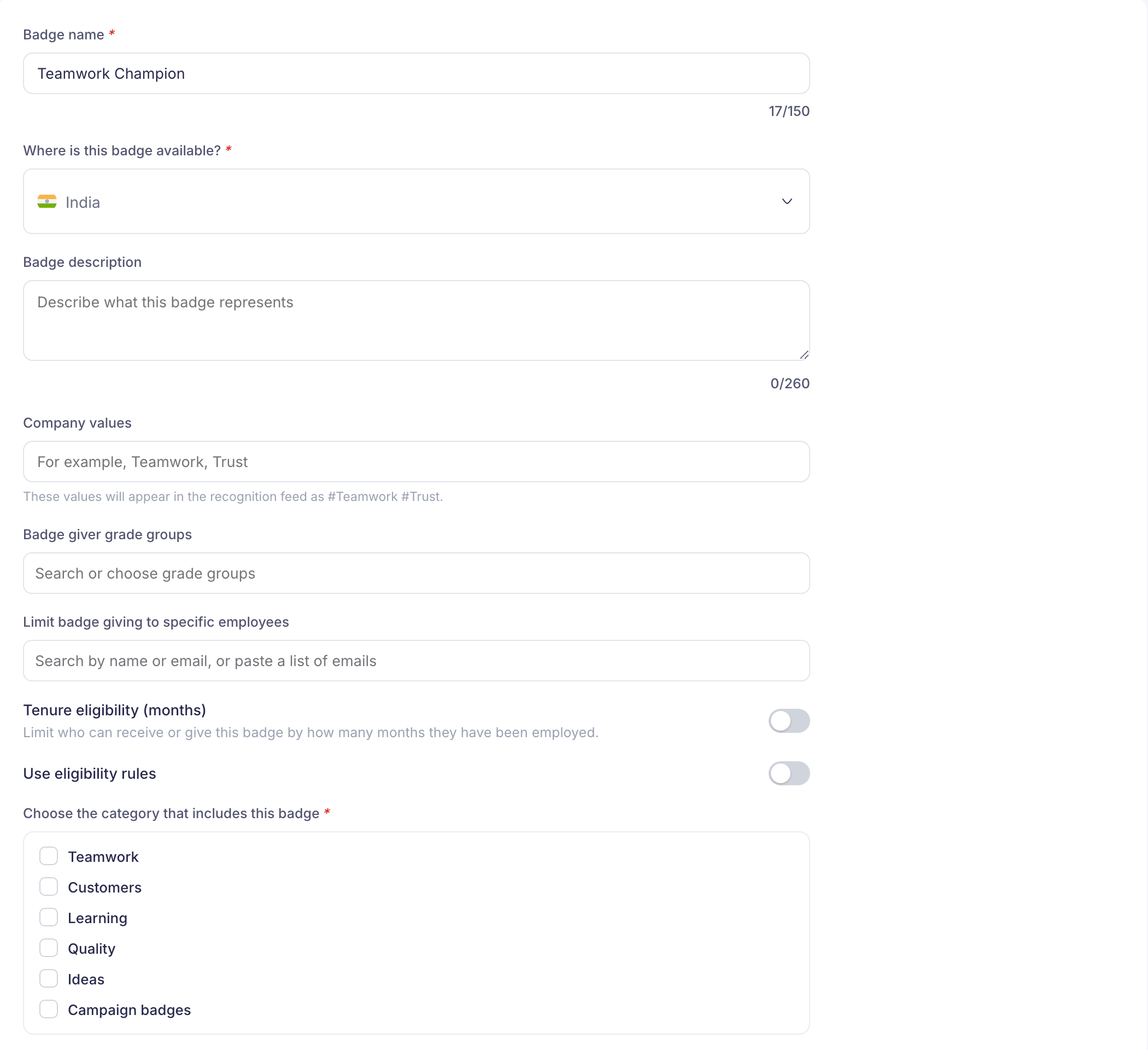
Enter a Badge name of up to 150 characters. Then choose at least one country, or All countries at the top of the list, under Where is this badge available? The badge is only offered when everyone being thanked works in one of these countries.
The rest is optional:
- Badge description tells people what the badge is for, in up to 260 characters.
- Company values become tags on the feed post. “Teamwork” shows as #Teamwork.
- Badge giver grade groups and Limit badge giving to specific employees narrow who can give it.
- Tenure eligibility (months) sets a minimum or maximum number of months employed, separately for receivers and badge givers. Someone outside the range can’t give or receive the badge.
- Use eligibility rules applies a rule saved in Recognition → Eligibility rules. You can also make a new one here with Create eligibility rule.
If your company uses recognition questions or categories, you’ll also see Choose the category that includes this badge or Choose which answers lead to this badge. Pick at least one. These come from Recognition → Questions & categories.
Design
Choose an icon from the library or upload your own, then pick a background colour. To upload, select the + tile at the start of the icons. Your icon must be a PNG of exactly 512 × 512 px with a transparent background. If it isn’t, you’ll see “Upload a PNG image that is 512 × 512 px and has a transparent background.”
Certificate
Add a certificate for recipients is on when you get here. Choose a certificate template, using Landscape or Portrait to switch between layouts, or turn the switch off if you don’t want one. Then select Create badge.
Employees can give the badge straight away. To change or turn it off later, see Edit, duplicate or deactivate a badge.