
Edit, duplicate or deactivate a badge
In Recognition → Badges, open the menu on a badge to edit it, copy it or deactivate it. A deactivated badge can be turned back on with Activate.
Go to Recognition → Badges and open the menu (three dots) on the badge’s card. In the table view, it’s at the end of the row. An active badge offers Edit, Duplicate and Deactivate. An inactive badge offers only Activate.
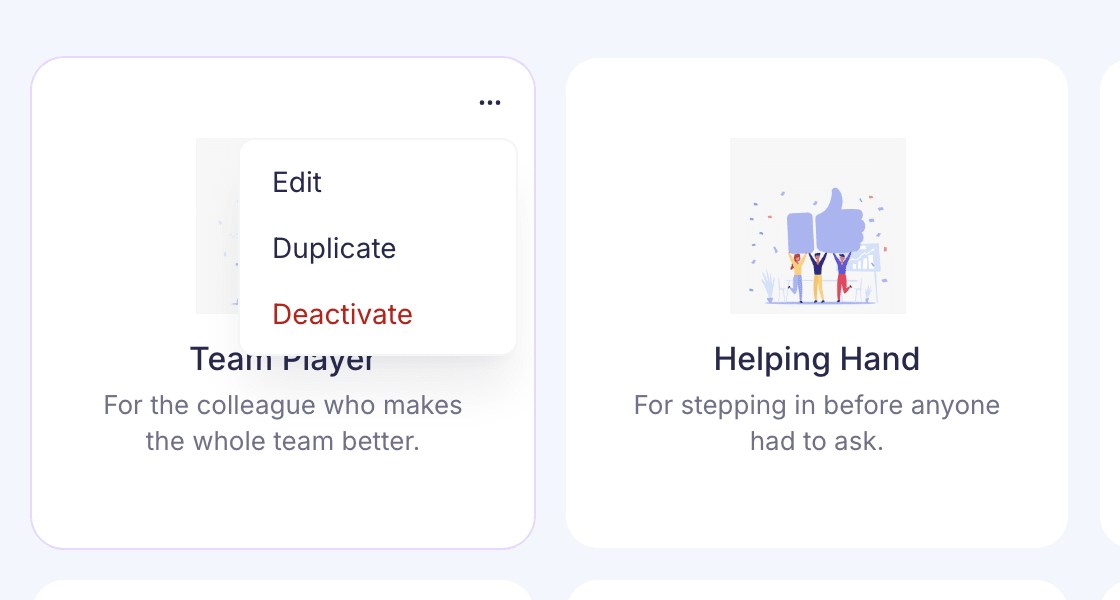
To find a badge, search by name or use the Status filter. Inactive badges are greyed out and listed after active ones.
You only see Badges if you’re a super admin or have the Manage badges permission.
Edit a badge
Select Edit. The same steps you used to create it open, already filled in. Make your changes and select Save changes. You’ll see “Badge updated”.
You can also select the badge’s name. Its page shows everything set on it, with Edit badge and Deactivate at the top.
Duplicate a badge
Select Duplicate. The form opens with a copy of every setting, named “Copy of” and the original name. Change what you need, then select Create badge. The original badge doesn’t change.
Deactivate or activate a badge
Select Deactivate, then Deactivate badge to confirm. Employees can no longer give it.
To turn it back on, select Activate in the same menu. It works straight away, without asking you to confirm. You can’t edit an inactive badge, so activate it first if you want to change it.
Campaign badges
Badges made for a campaign show Campaign in the Type column of the table view. They’re only listed while their campaign is scheduled or running. See How recognition campaigns work.
If something goes wrong
- “Badge could not be updated” comes with the reason underneath. Fix the step it points to and save again.
- “Badge details could not be loaded” means the badge didn’t open properly. Close the form and open the badge again.
- “Permission Denied” when you save means your role is missing a permission the save needs. Ask a super admin to make the change.