
Assign and track tasks
Open a plan from Home → Plans to use its task board. Add tasks, assign people and move cards from To do to Done. Your own tasks are in Home → My tasks.
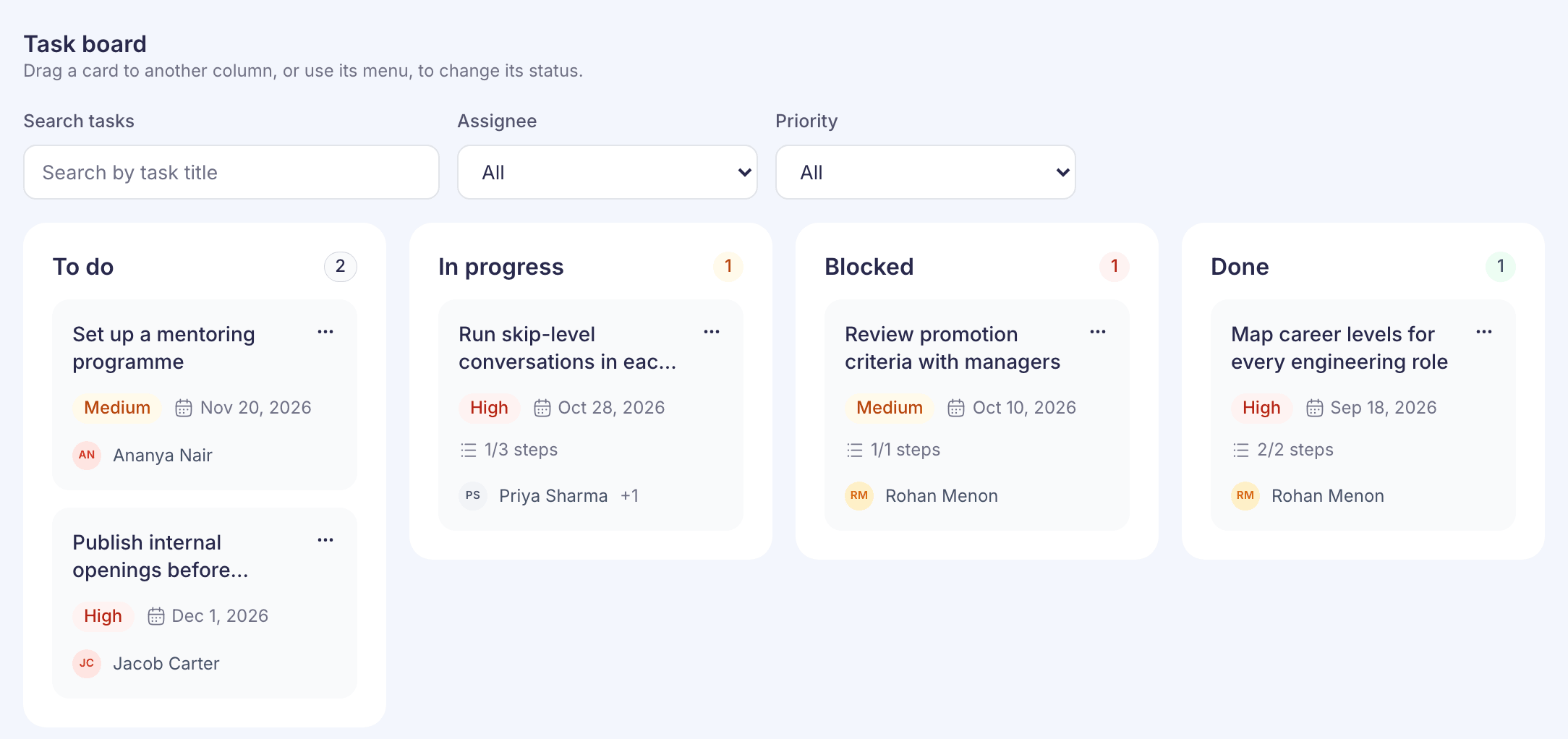
Every plan has a Task board with four columns: To do, In progress, Blocked and Done. Open a plan from Home → Plans to see it. The plan’s progress counts done tasks out of all its tasks.
Add a task
- On the plan’s page, select Add task.
- To save typing, pick one under Start from a template. There are five, such as Peer recognition programme and Wellbeing reset month. A template fills in the title, description, steps, priority and due date, and you can change any of them.
- Enter a Title of up to 200 characters. A Description is optional.
- Under Assignees, search for at least one person. A task can have up to 20.
- Choose a Due date if you want one, and a Priority: Low, Medium or High. Medium is selected by default.
- Add Steps if the task has several parts. Select Add step for each one. A task can have up to 20 steps.
- Select Add task. It goes into the To do column.
Move a task
Drag the card to another column, or use the card’s … menu and choose Move to a status. The change saves straight away.
To find cards on a busy board, use Search tasks, Assignee or Priority. The board then says how many tasks are shown, such as “3 of 8 tasks shown”, with Clear filters beside it.
Update a task
Select a card to open it in a side panel.
- The buttons at the top move it on: Start working, Block, Mark done, Resume or Reopen, depending on where it is.
- You can change Assignees, Due date, Priority, Description and Steps. Each change saves on its own, and “Saving…” then “Saved” appears under the field. The description and step text save when you click away from them.
- Tick a step to mark it done. The card shows how many steps are done, such as “1/3 steps”.
- Write in Add a comment and select Add comment. Comments show the writer’s name and the date. They can’t be edited or deleted.
You can’t change a task’s title once it’s added. Delete the task and add it again.
A task past its due date that isn’t Done shows as Overdue.
Delete a task
Select Delete task in the side panel, or in the card’s … menu. You’ll be asked first, because its steps and comments are removed too. This can’t be undone.
Your own tasks
Home → My tasks lists every task you’re assigned to, from every plan. Filter by Status or Priority, or search. Select a row to open the task. Its Plan link takes you to the plan.
Who sees tasks
Assignees aren’t sent an email or notification. They only see their tasks if they can open Action planning themselves, which takes the super admin or HR admin role. If you assign a task to someone without one of those roles, tell them about it yourself.
If something goes wrong
“Not saved.” under a field The reason follows it. Select Try again. Your other changes are kept.
“Couldn’t move the task” The card stays in its old column. Try again.
“This task no longer exists.” Someone else deleted it while you had it open.