
Create an action plan
Go to Home → Plans → New plan, or select Create plan on a signal. Pick the signals behind it, name it, choose an owner and a due date, add the first tasks and select Create plan.
Go to Home → Plans and select New plan. Or, in Home → Signals, open a signal and select Create plan, and that signal is already picked for you. Nothing is saved until you select Create plan at the bottom.
Before you start
- You can’t change a plan’s title, focus area or scope once it’s created. Only the owner, due date and status can change later.
- Signals are optional. A plan about something no signal measures yet, such as pay, can start without any.
Steps
-
Evidence. Pick one or more signals under Signals. The list shows signals that are New, meaning no plan uses them and nobody dismissed them. What the data says on the right shows the baseline and latest numbers for each signal you pick. The focus area, scope and title fill in from your signals until you change them yourself.
-
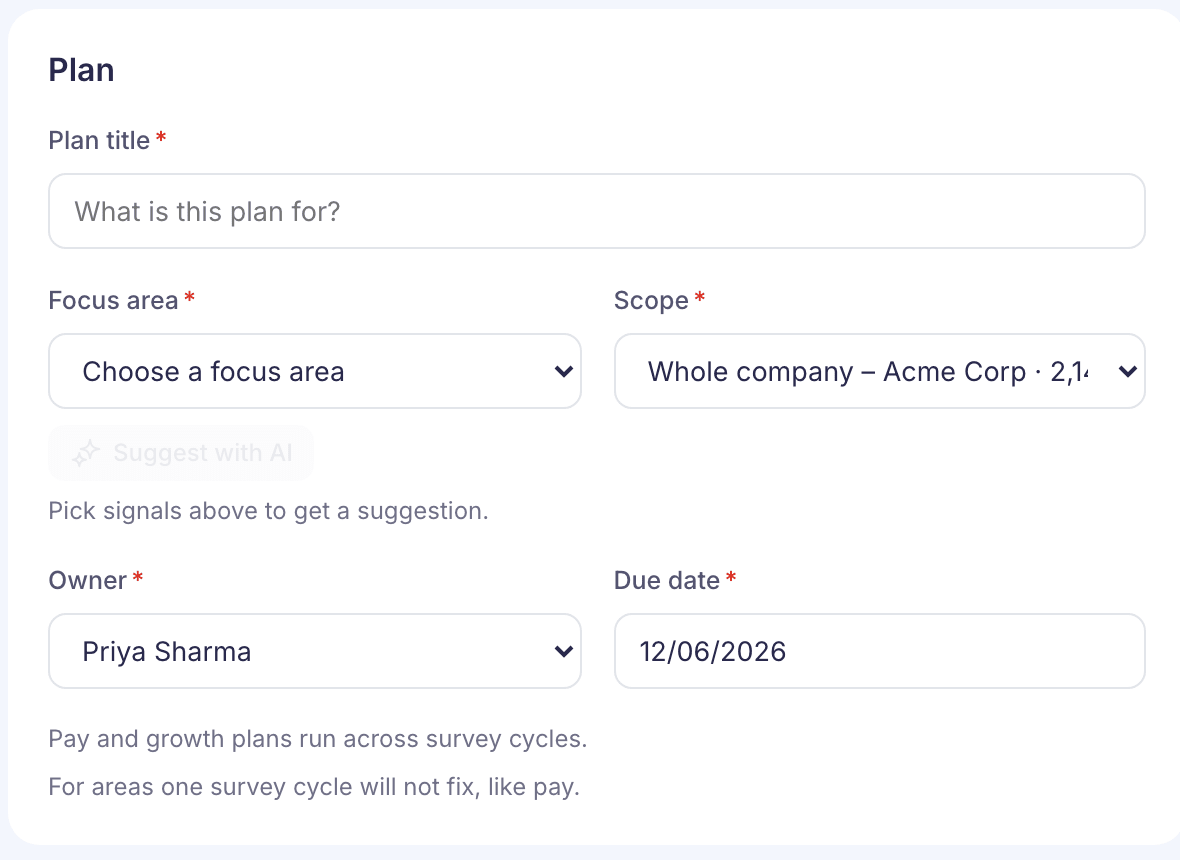
Plan. Fill in the plan’s details. All five are required.
- Plan title, up to 200 characters.
- Focus area: one of nine areas, such as Pay & benefits or Manager & leadership. Select Suggest with AI for a suggestion based on your signals, then Use it if you agree. The suggestion says how sure it is, for example “AI suggests Growth & career (82% confident).”
- Scope: Whole company or one department.
- Owner: you, unless you search for someone else. A plan has one owner.
- Due date: two months from today, unless you change it. It can’t be in the past.
Plans on Pay & benefits or Growth & career are marked Long-term, because one survey cycle won’t fix them.
-
Tasks. Enter a task in New task, then select Add task or press Enter. For ideas, select Suggest tasks with AI. You’ll get up to three ideas, each with two to four steps, and nothing is added until you choose. Select Add next to an idea, or Add all. These tasks start with the plan’s owner and due date. You can change both on the task board.
-
Select Create plan. If something’s missing, the field says so and the page moves to it.
A task you typed but didn’t add is still saved with the plan.
About the AI suggestions
Suggest with AI and Suggest tasks with AI stay greyed out until you pick at least one signal. They use the picked signals’ headlines and numbers. No employee names or answers are sent. If AI can’t answer, a message appears under the button. Carry on without it.
What happens next
The page says Plan created and opens the new plan, with its status set to In progress. On the Signals page, the signals you picked now show as In a plan.
The signals’ numbers are saved on the plan as they are today, marked Saved evidence. Later updates to the signals don’t change them. The owner isn’t sent an email or notification.
To leave without saving, select Cancel or the back arrow. You’ll be asked first, because “Your plan has not been created yet.”
If something goes wrong
“Plan not created” The reason is shown with it. Check the form and select Create plan again.
“There are no open signals right now.” Every signal is already in a plan or dismissed. You can still create the plan and add signals later from the plan’s page, or use Add to plan on the Signals page.