
Set up the service yearbook
Turn on Include a digital yearbook in a milestone award, then design the book on the Yearbook step. Colleagues' messages are collected before the anniversary and the employee gets the book on the day.
A yearbook collects colleagues’ messages for an employee’s work anniversary and turns them into a book. You set it up inside a milestone award, so each number of years can have its own design.
- Go to Recognition → Service milestone → Milestone awards. Select Add milestone award, or open an existing award and select Edit.
- On Years of service, turn on Include a digital yearbook. This adds a Yearbook step after Reward points.
- On the Yearbook step, choose a cover under Choose a cover.

- Use the standard cover needs a Company logo in color and a White company logo. You crop each image before it uploads, and it’s sized to fit 260 x 70 px. You can add a Back cover message of up to 700 characters.
- Use a custom cover needs a Front cover, a Back cover and an Inside-page background, each at least 580 x 481 px. A Company logo (optional) is sized to fit 200 x 60 px.
- Under Text style, pick a Font and a Text color.
- Under Yearbook content, turn on what the book should include.
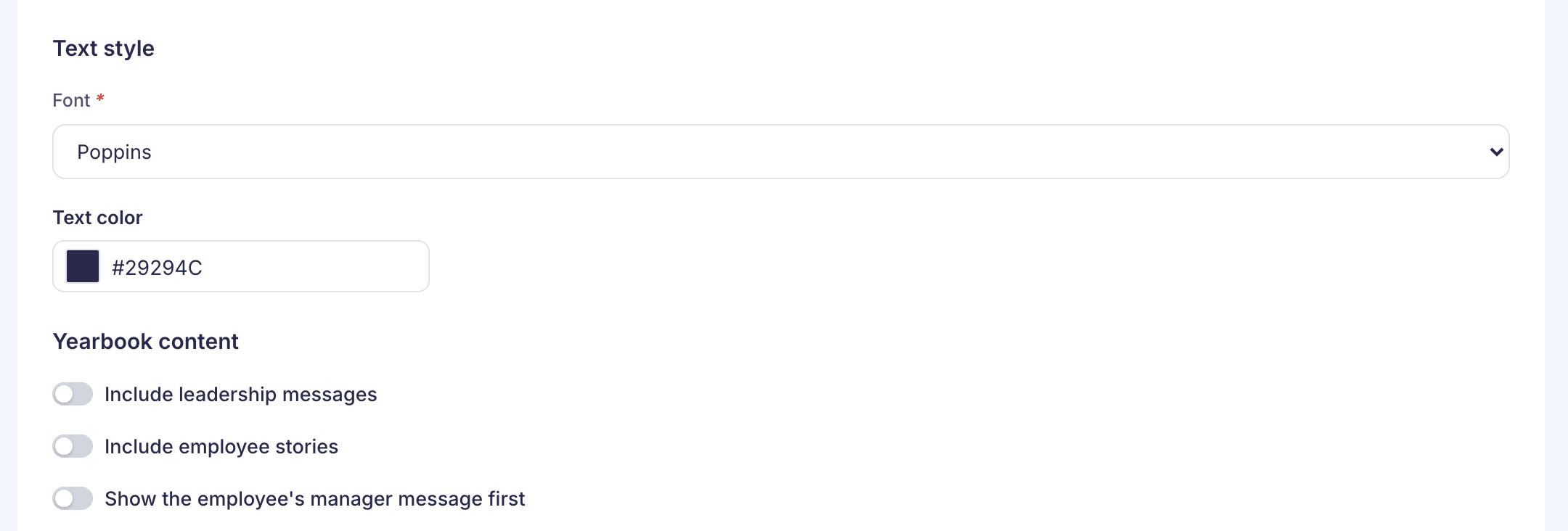
- Include leadership messages adds up to 4 messages from leaders. Each one has a Name, a Job title (30 characters each), a Message (700 characters) and a photo cropped to 130 x 130 px.
- Include employee stories lists your company’s story questions. Tick at least one. Select the pencil to reword a question, up to 50 characters.
- Show the employee’s manager message first puts the manager’s message at the front of the book.
- Select View sample yearbook at the bottom of the page to see a sample before you go on.
- Complete the remaining steps and select Create milestone award, or Save changes if you’re editing.
Fill in all four fields for every leader. The screen lets you save a leader with only a name or only a message, plus a photo. But the book only includes leaders who have a name, a job title, a message and a photo.
What happens next
By default:
- Colleague invitation: about a week before the anniversary, colleagues in the employee’s department get an email asking them to add a message.
- Reminder: colleagues who haven’t written get a reminder 3 days before.
- Employee stories: if Include employee stories is on, the employee gets an email asking them to answer the questions and invite colleagues. Their manager is copied.
Your company can use different dates or invite a different group.
On the anniversary, the employee gets an email with the yearbook attached as a PDF. You can follow the messages as they come in on Upcoming celebrations. See Track upcoming work anniversaries.
An employee who has turned off work anniversary posts in their profile doesn’t get a yearbook.
If something goes wrong
- “Upload the color and white versions of your company logo.” The standard cover needs both logos. View sample yearbook needs them too.
- “Upload the front cover, the back cover and the inside-page background to continue.” The custom cover needs all three images.
- “Choose at least one question, or turn off employee stories.” Tick a question, or turn off Include employee stories.
- “No employee story questions are set up for your company yet.” Turn off Include employee stories for now.
- “Milestone award saved, but yearbook not saved” The award itself is saved. Open it with Edit and save the yearbook again.