
Check how budgets are being used
Rewards Hub → Budget utilisation shows, for one country, how much budget holders were given and how much they awarded across the budget cycles you pick, holder by holder.
Go to Rewards Hub → Budget utilisation. It shows how much budget holders were given and how much they awarded to employees, for one country at a time.
Choose what to look at
- Country: pick one. There’s no “all countries” view, because points are worth a different amount in each country.
- Department: narrow to one or more departments, or leave it on All departments.
- Budget cycles: leave it on All cycles, or pick the cycles you want to compare.
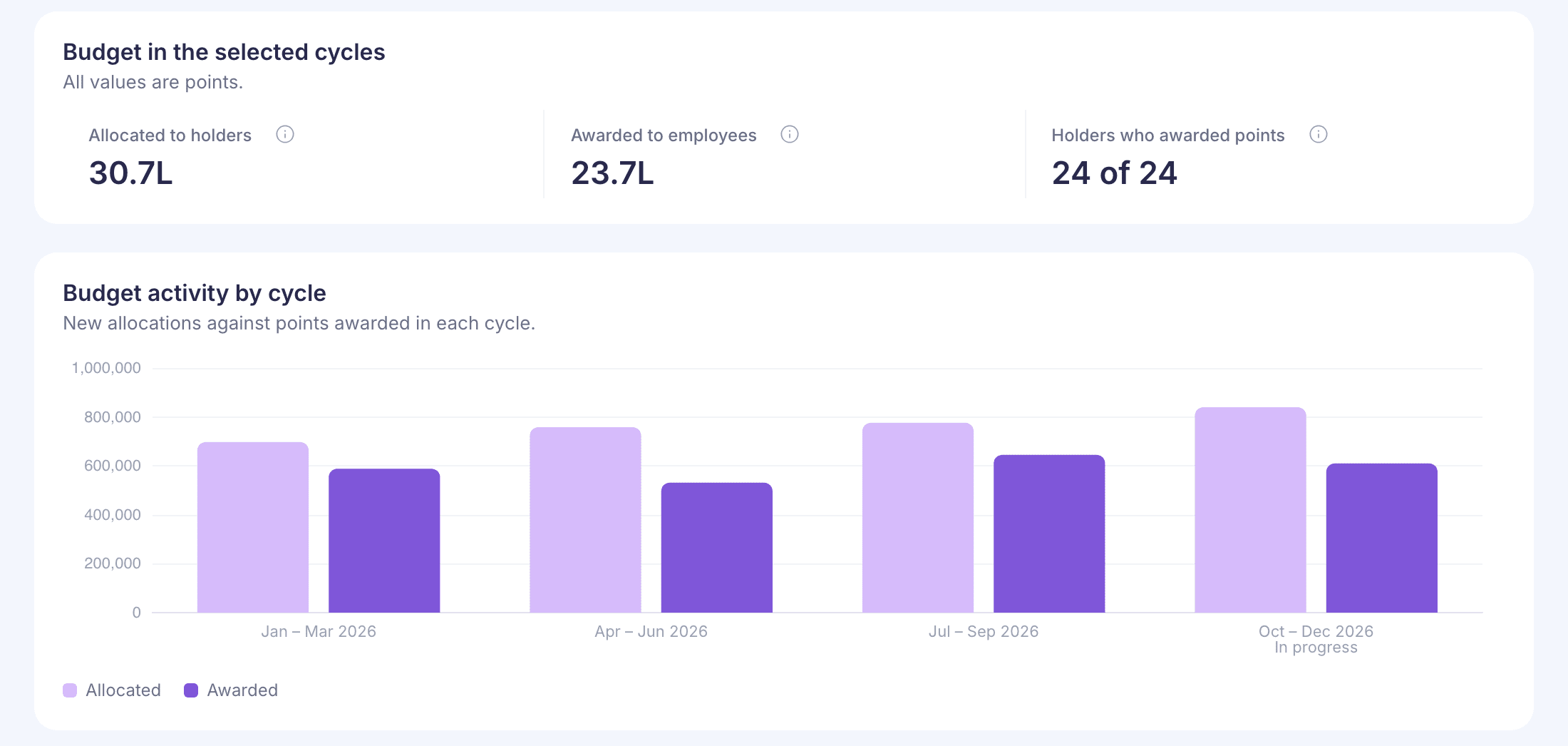
Read the totals
- Allocated to holders: new budget given in those cycles. Budget carried in from an earlier cycle isn’t counted again.
- Awarded to employees: points holders gave out, including from carried-in budget. That’s why awards can be higher than allocations.
- Holders who awarded points: how many holders gave out any points, out of all holders.
Budget activity by cycle puts each cycle’s allocations next to its awards. The cycle that’s still running is marked In progress.
Find holders who aren’t using their budget
Under Budget by holder, set Sort to Least used first. The other choices are Most points awarded (the default), Largest allocation and Name A–Z.
Used compares what a holder awarded with everything they could have awarded, including carried-in budget. Anything under 50% is highlighted. A Taken back tag means more points were taken back from that holder than given in those cycles.
Select a holder’s name to see each cycle on its own: Carried in, Allocated, Awarded, and Left with holder now.
Select Download to save the holder list as a CSV file.
Good to know
- Birthday, anniversary and bulk-upload points aren’t part of holder budgets, so they aren’t counted here.
- These figures show activity, not a closing balance. For each holder’s balance today, use Rewards Hub → Budgets. See How budgets work.
- HR admins see only the departments they’re responsible for. If none are assigned, the page says “You don’t have access to budget data”. Ask a super admin to give you access to departments.
- If your company doesn’t use budgets, this page isn’t shown.
For downloadable reports, see Emails and reports.