
Create a survey template
Go to Pulse → Templates → Create template, choose a survey type, then set the template's details, questions and default invitation. You need Pulse Pro.
A template is a starting point for a survey: a set of questions and a default invitation email. When an admin picks it in Create survey, its questions and invitation fill in, and they can still change them before launching.
Go to Pulse → Templates and select Create template. On Pulse Lite, the button has a Pro tag and opens an upgrade box instead.
Steps
-
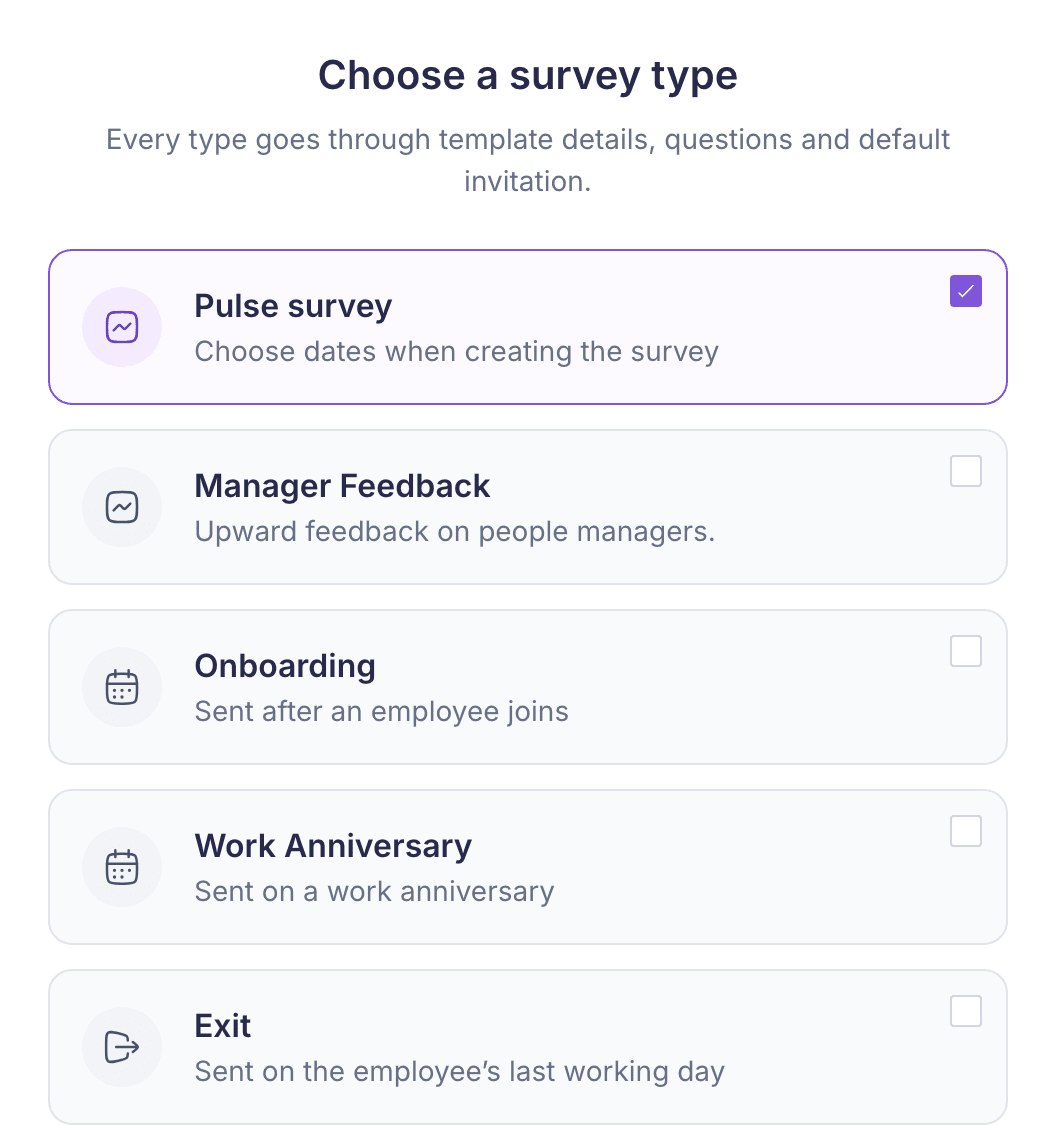
Choose a survey type. Pulse survey types are sent on dates you set when you create the survey. Onboarding, work anniversary and exit types are sent automatically at an employee milestone. Select Continue.
-
Template details. Enter a Template name of up to 200 characters and a Description. Admins see the description when they choose a template.
- For onboarding, choose how many days after joining it’s sent: a preset, or any day from 1 to 330.
- For a work anniversary, choose the year: a preset, or any year from 1 to 100.
- Exit surveys go out on the employee’s last working day, so there’s nothing to set.
There’s one template per milestone. If you pick a milestone that already has a Vantage Circle template, yours replaces it for your company. If you already have your own template for it, saving updates that one. The screen tells you which will happen.
-
Questions. Pick questions from the Question library. It holds the questions available for the survey type you chose. Add at least one. Answer settings, such as whether a question must be answered, use the survey defaults and can’t be changed in a template.
-
Default invitation. Choose Use the company default or Use a saved invitation. Saved invitations come from Pulse → Emails. See Edit invitation emails. The survey link is added when the invitation is sent.
-
Select Create template. You’ll see Survey template created.
Nothing is saved until that last step. If you leave the page before then, you’re asked first.
What happens next
The template appears on Pulse → Templates with the source Company. Admins can pick it on the template step of Create a Pulse survey. For lifecycle templates, see Lifecycle and exit surveys.
Change a template later
Open the row’s menu on one of your company’s templates:
- Change template settings lets you change the survey type and the default invitation. The name, description and questions can’t change. A lifecycle template’s milestone can’t change either.
- Change default invitation opens straight on the invitation.
- Duplicate copies the template into a new one, named “Copy of” the original. Use it when you need different questions.
Vantage Circle templates can’t be changed. Duplicate one to make your own version.
If something goes wrong
“No survey types are available. Create a survey type before creating a template.” See Create a survey type.
“The linked invitation is no longer available. Choose another invitation.” The email was deleted from Pulse → Emails. Pick another one.
“The template could not be saved. Try again.” Nothing was saved. Try again in a moment.
“You can view survey templates, but you cannot change them.” Reporting managers can look at templates but can’t create or change them.