
Edit invitation emails
Pulse → Emails holds the invitation emails your surveys send. Create your own, edit them, or copy the Vantage Circle default, then pick one in a survey template.
Pulse → Emails lists the invitation emails your surveys can send. Emails your company wrote are marked Custom. The Vantage Circle one is marked Default. The Used by column shows how many survey templates use each email.
An email reaches employees through a template. Each template has a default invitation, and admins can still change the wording in the Invitation step of Create a Pulse survey.
Create an email
- Select Create email.
- Enter an Email name. Only admins see it.
- Enter the Subject employees see in their inbox.
- Write the Message. Say why you’re asking. The greeting and the Start Survey button are added for you.
- Check the Sign-off. It starts as “Warm regards, The HR team at” your company’s name. Changing it needs Pulse Pro. On Pulse Lite, the field is locked and says “Your Pulse plan does not include custom sign-offs.”
- Check the Message preview on the right, then select Create email.
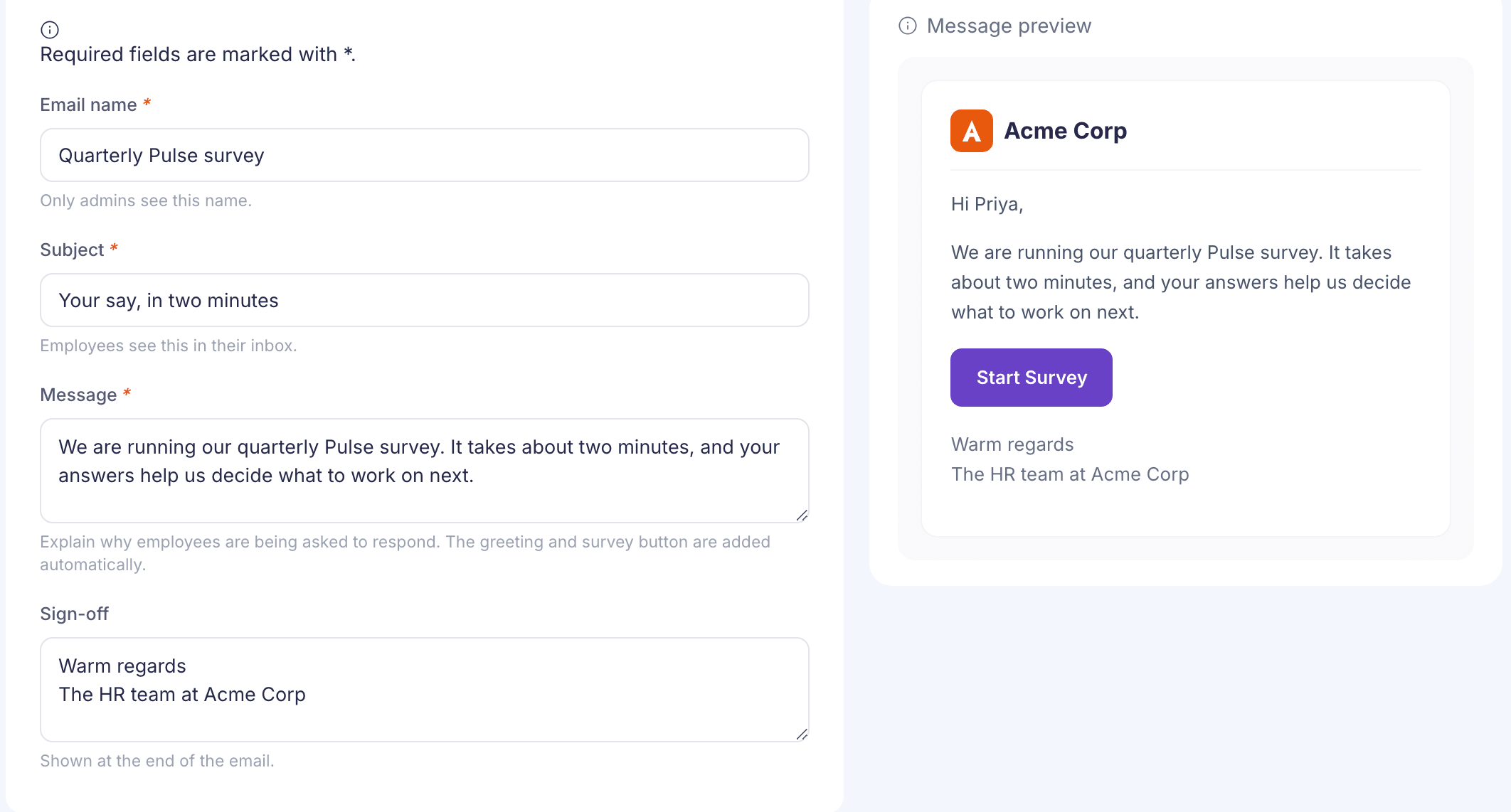
The preview shows your company’s logo at the top. You’ll see Email created. You can now choose it in a survey template’s Default invitation step. See Create a survey template.
Edit, copy or delete an email
Open the row’s menu:
- Edit opens one of your emails. Select Save changes when you’re done. New surveys that use it get the new wording. Invitations already sent don’t change.
- Preview opens the Vantage Circle default. It can’t be changed.
- Duplicate copies any email, including the default, into a new one called “Copy of” the original. Use it to start from the default wording.
- Delete removes one of your emails. The box tells you how many survey templates use it. Those templates need a new invitation, so open each one and pick another email.
If something goes wrong
There’s no Emails tab Reporting managers can’t open Pulse → Emails unless they’re also HR admins.
“We could not save this email. Try again.” Nothing was saved. Select Create email or Save changes again.