
Create a standard award
Go to Recognition → Awards → Create award, choose Standard award and work through five steps. Creating the award doesn't nominate anyone or give out points.
A standard award gives reward points to someone a colleague nominates. Go to Recognition → Awards, select Create award, choose Standard award and select Continue.
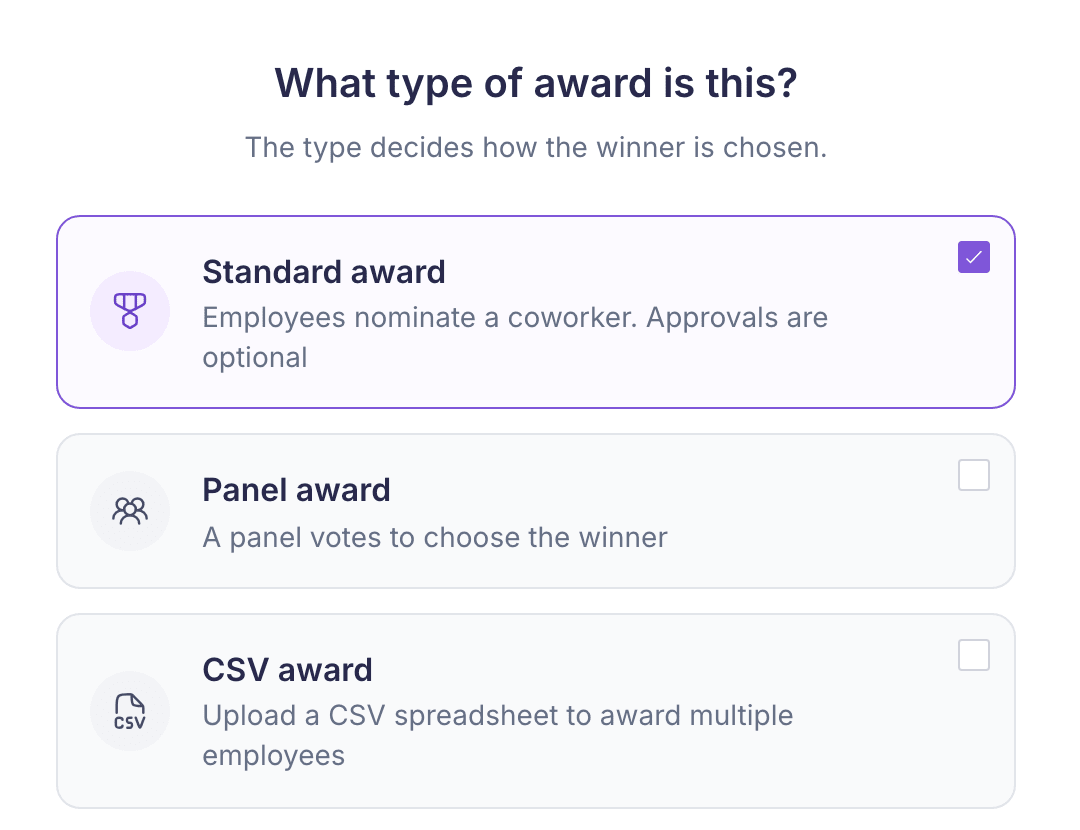
There are five steps: Details, Eligibility and approvals, Reward points, Design and Certificate.
1. Details
Enter an Award name. You can also add an Award group to keep related awards together, Company values for tags on the feed post, and an Award description.
If your company uses recognition questions, you’ll see Choose which answers lead to this award. Choose one answer for each question in an answer set. Each answer set is an alternative route to the same award.
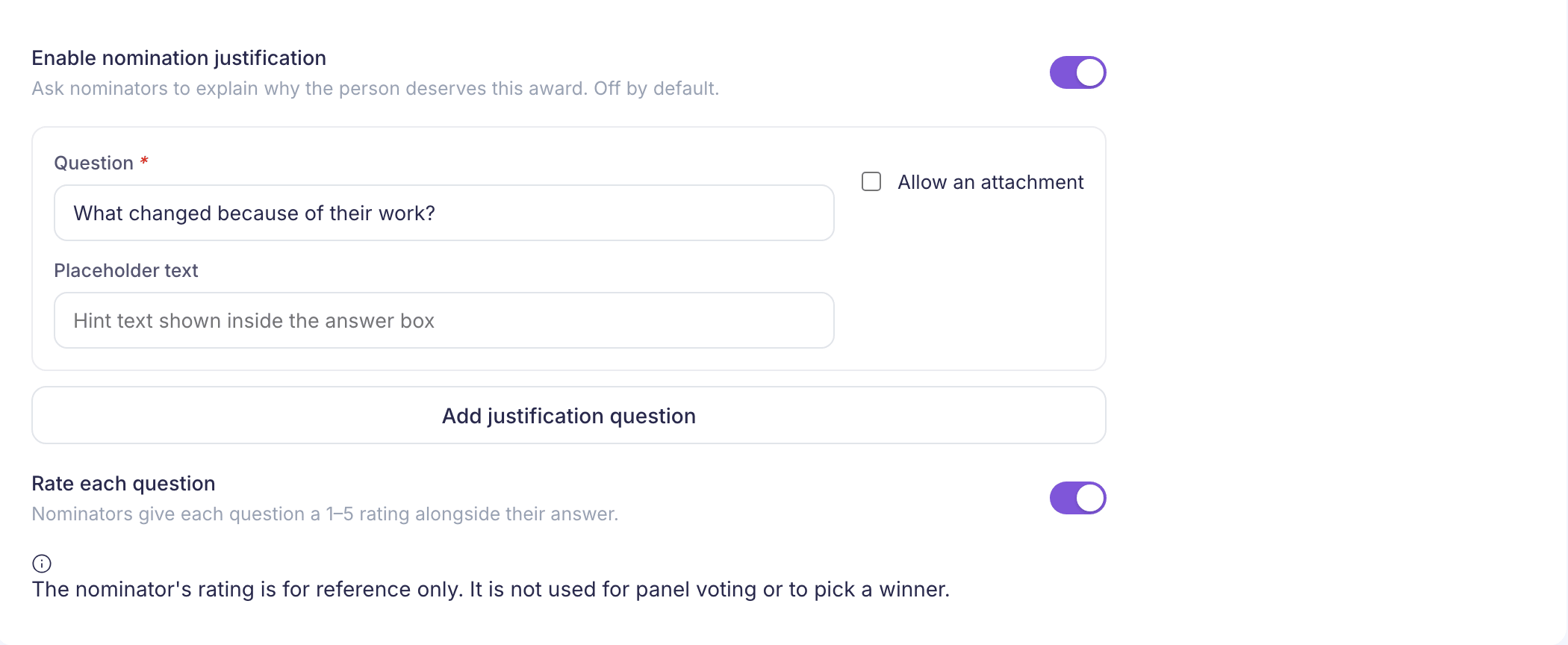
Enable nomination justification is off by default. Turn it on to make nominators explain their choice. You can add your own questions, with hint text and attachments, and use Rate each question to collect a 1–5 rating. The ratings help reviewers; they don’t pick the winner.
2. Eligibility and approvals
Under Approval process, choose No approval needed (the default), One approval or Two approvals. With approvals, you choose who approves at each level.
Then:
- Award visibility: choose at least one of the options shown. The options come from your company’s settings.
- Where is this award available?: choose the countries, or All countries at the top of the list.
- Optional limits: Nominator grade groups, Use eligibility rules, Tenure eligibility (months) and Limit nominations to specific employees. For tenure, leave a field empty or enter 0 if there’s no limit. If you turn Use eligibility rules off, the award saves without rules, even if you’d picked some.
- Allow self-nominations: appears if your company has self-nominations turned on. Choose Self and others or Self only.
- Award limit: if you see it, it applies one of your company’s existing award-limit rules.
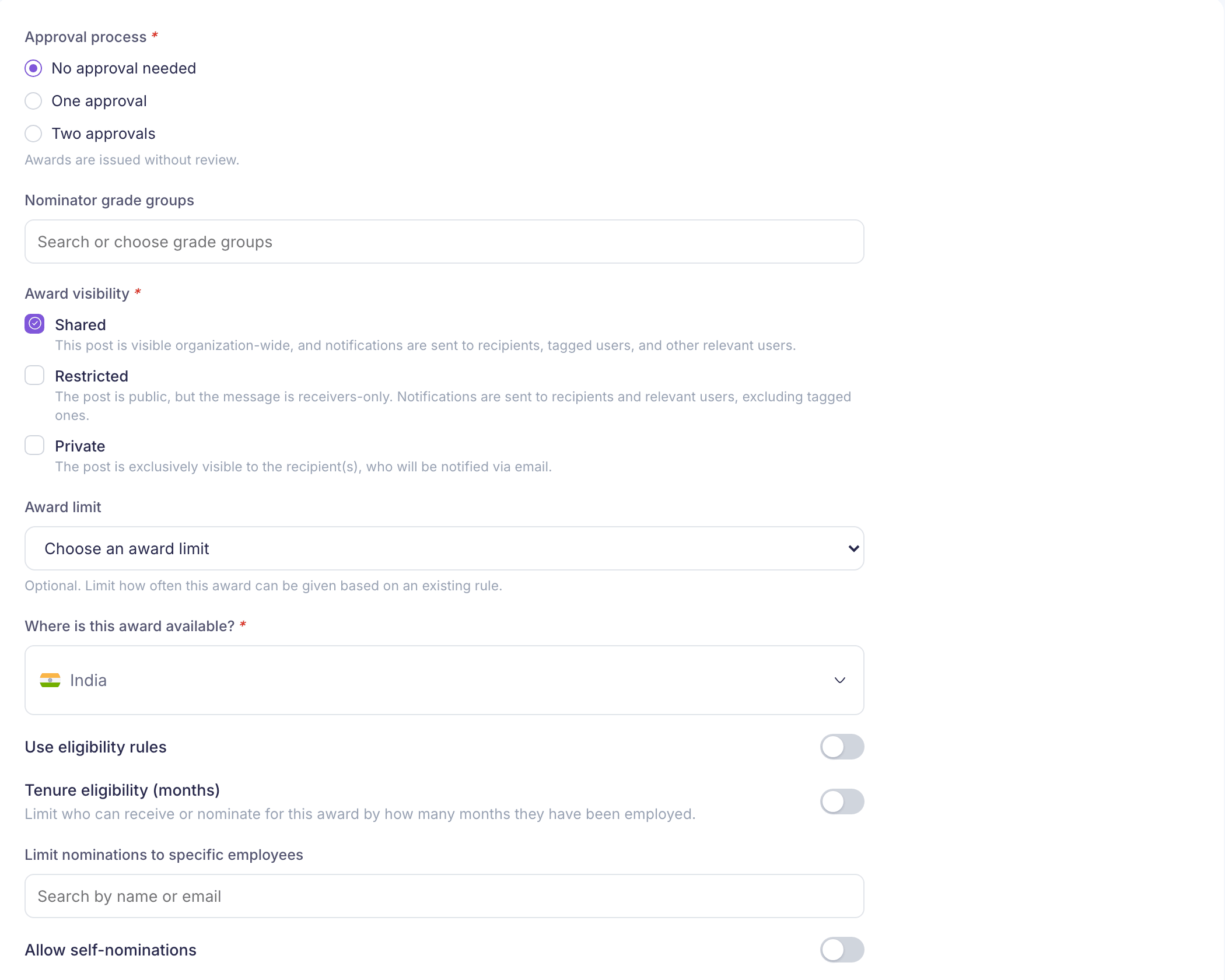
The visibility options and their descriptions come from your company’s settings, and Award limit and Allow self-nominations only show for some companies. Yours can differ from the picture.
3. Reward points
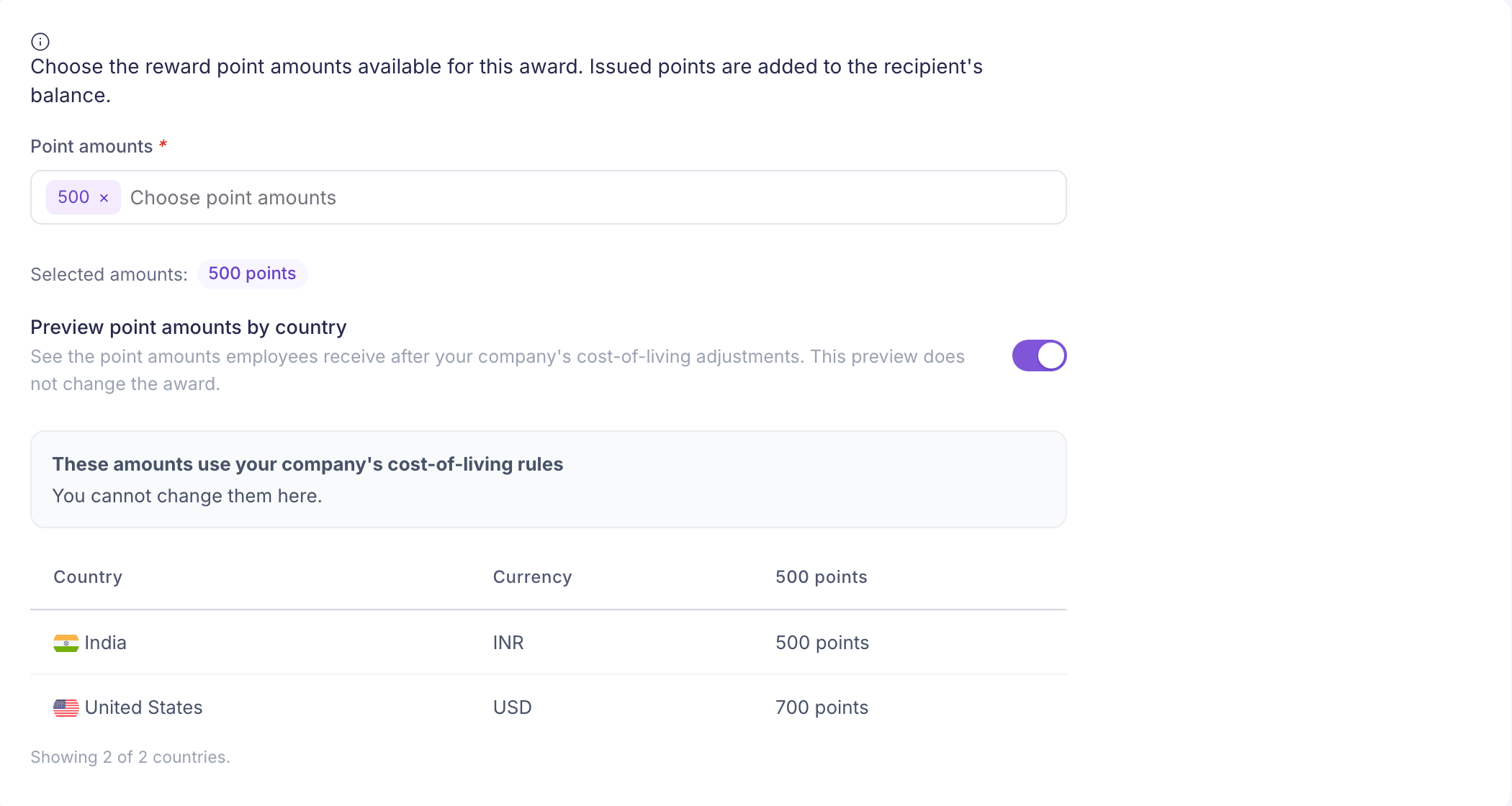
Choose one or more Point amounts. Only the amounts set up for your company are listed. If none are, contact Vantage Circle to have them added.
Preview point amounts by country shows what people receive in each country after your company’s cost-of-living adjustments. Check the Currency column. The preview doesn’t change the award.
4. Design
Choose an icon and a background. Both are required.
5. Certificate
Add a certificate for recipients is off by default. If you turn it on, you must choose a template. You can filter templates by Landscape or Portrait.
Select Create award. Eligible employees can nominate for it straight away. Creating it doesn’t nominate anyone or give out any points.