
Edit, duplicate or deactivate an award
In Recognition → Awards, open an award's row menu to Edit, Duplicate or Deactivate it. Deactivated awards can be turned back on, except panel awards.
Go to Recognition → Awards and open the menu (three dots) at the end of the award’s row. Active awards offer Edit, Duplicate and Deactivate. Inactive standard and CSV awards offer only Activate.
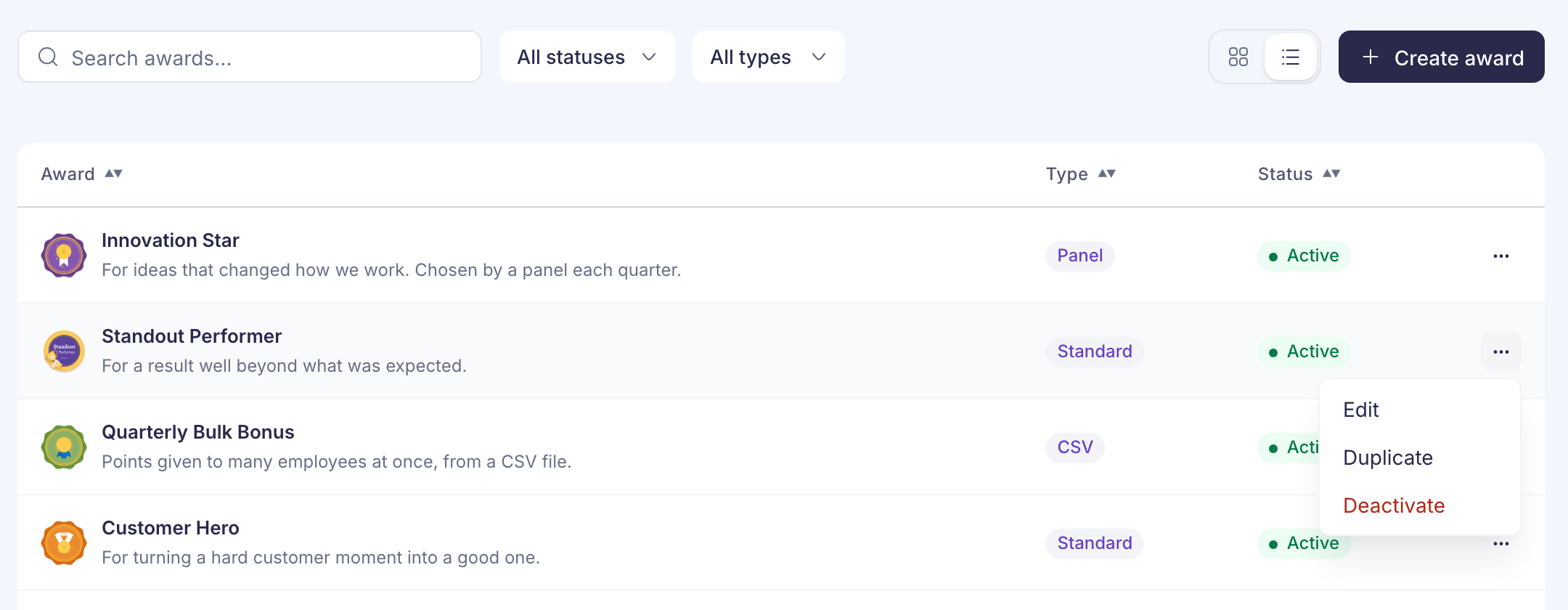
You can also select an award to open its page. It lists everything set on the award, with Edit award and Deactivate at the top.
Edit an award
- Select Edit. The award opens in the same steps you used to create it.
- Change what you need on any step.
- Select Save changes on the last step.
You’ll see “Award updated”. The award’s type can’t be changed. To switch from a standard award to a panel award, for example, duplicate it and pick the new type.
To edit an inactive award, activate it first. If you open one for editing from a link, you’ll see “Inactive awards cannot be edited”.
Duplicate an award
Select Duplicate. A copy opens with “Copy of” in front of the name and everything else filled in. Here you can also choose a different award type. Select Create award to save it as a new award.
Deactivate an award
- Select Deactivate.
- Check the message and select Deactivate award.
Employees can no longer give the award. A standard or CSV award can be turned back on with Activate.
Panel awards can’t be reactivated. The message says “You cannot reactivate a panel award after you deactivate it.” To run it again, duplicate it before you deactivate it, or create a new one.
Awards can’t be deleted. Deactivate the ones you no longer use.
If something goes wrong
If you see “Award could not be updated”, check each step for a field marked in red and try again. If the save is still refused, ask a super admin to make the change.
Badges and greetings have their own pages with the same kind of row menu. See Badges and greetings.