
Connect work tools for Smart Nudges
In Recognition → Connectors, a super admin connects tools such as GitHub, Jira or Salesforce once for the whole company. Smart Nudges then suggests moments to recognise, about colleagues who have opted in.
Smart Nudges reads finished work from your company’s tools, such as closed tickets or won deals, and suggests colleagues an employee might want to thank. You connect each tool once for the whole company in Recognition → Connectors.
Only super admins at companies with Smart Nudges can manage connections. Everyone else sees the page title and nothing below it. If that’s you and you expected more, ask a super admin or your account manager.
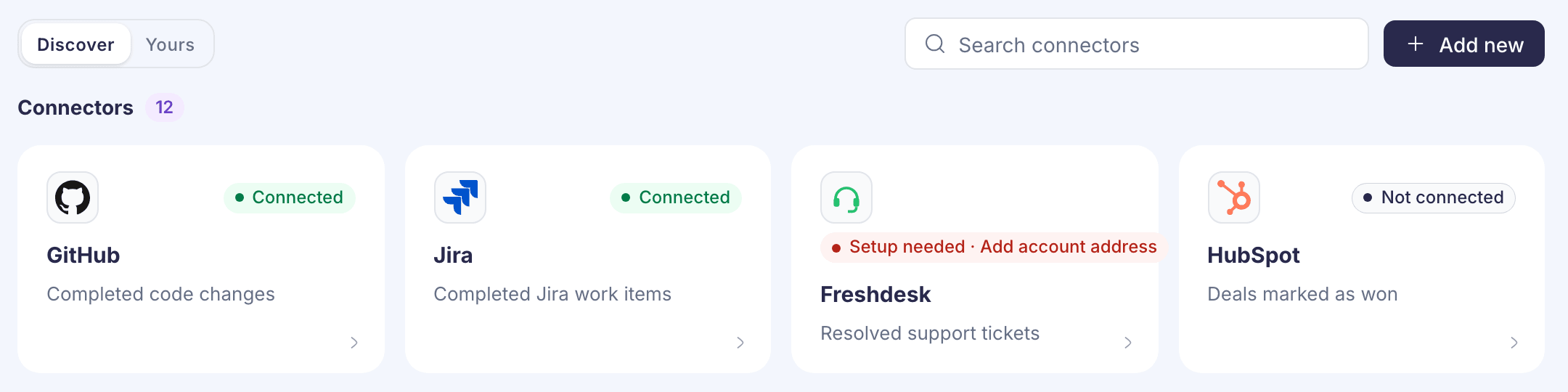
Connect a tool
- Go to Recognition → Connectors. Discover lists every tool on offer; Yours lists the ones you’ve connected.
- Select the tool. The tools are GitHub, Jira, Freshdesk, HubSpot, ClickUp, Microsoft Planner, Salesforce, Zendesk, Asana, GitLab and Azure DevOps.
- Fill in the fields. Each tool asks for its own sign-in details, such as an access token or API key, and sometimes an address, such as your Jira site address. The hint under each field says where to find it in that tool.
- Select Test connection to check the details. Testing doesn’t save anything.
- Select Connect. You’ll see a message such as “GitHub connected”.
A tool that shows Setup needed is missing an address or ID. Open it, add what’s missing, leave the saved sign-in fields blank, and select Update connection.
Match employees the tool can’t find
Smart Nudges matches people by their work email. If someone uses a different email in a tool, open the connected tool and use Match employees to that tool. Paste or upload a CSV, up to 2 MB, with an email column and a column for the person’s ID in the tool. Then select Import employee matches. Uploading the same employee again updates their match.
Add your own tool
If you have an in-house system, select Add new. Enter a Name and an Endpoint URL, choose the Authentication style and enter the token, then select Test and Add custom tool.
The address must start with https:// and be reachable from the internet. An intranet address, a private IP range or localhost won’t work. Your developers have to build the endpoint. The setup instructions for them are still a draft, so they can’t be copied yet. Ask your Vantage Circle contact for them.
Privacy
- Employees choose whether to take part. Smart Nudges asks them first and only uses activity from people who select Count me in. They can opt out at any time from My Profile → My Account Preference.
- Smart Nudges reads summaries of finished work, such as titles, priority and dates. It doesn’t read code, ticket conversations, chats, documents or customer data.
- Saved sign-in details are hidden, even from you. Replacing them asks you to confirm, because the old details can’t be viewed or restored.
Good to know
There’s no button to disconnect a tool or delete a custom tool. If you need one removed, ask your Vantage Circle account manager.