
Edit recognition emails
Go to Recognition → Emails, open an email, pick the language and service year, edit the subject and text, then select Save email. Your company then uses your version instead of the default.
Who can do thisSuper admins, Admins with the manage roles permissions
PlanRecognition
WhereAdmin dashboard
Last checked15 Oct 2026, against the current product
Recognition → Emails lists the automatic emails Recognition sends for birthdays, work anniversaries and service milestones. You need to be a super admin or have the Manage roles permission to use it.
The emails
| When it’s sent | |
|---|---|
| Birthday | On an employee’s birthday |
| Birthday with points | On a birthday, with the employee’s birthday points |
| Work anniversary | On a work anniversary that has no service award |
| Service award | On a work anniversary that is a service milestone |
| Service award with points | On a service milestone anniversary that gives points |
| Service yearbook | On a service milestone anniversary, with the employee’s yearbook |
| Service yearbook contribution request | To colleagues before the anniversary, asking them to write in the yearbook |
| Service milestone reward | Before a service milestone anniversary, so the employee can choose a gift from the milestone catalog |
You only see the emails that apply to your company. Campaign invitation and reminder emails aren’t here; you edit them when you create a campaign.
Edit an email
- Go to Recognition → Emails and select the email.
- If you see Language or Service year, choose the version to edit. Some work anniversary emails have a separate version for each service year.
- Edit the Subject line, up to 150 characters.
- Edit the text in Email layout. Click a row to change or delete it.
- Use the chips under Add employee details, such as Employee name, to add details that are filled in when the email is sent.
- Use Add CTA to add up to three buttons.
- Under Edit/Delete Image, select Upload to change the picture.
- If you see CC email, tick Add CC and choose which of the employee’s details to send a copy to.
- Select Preview to check it, or Send test email to send it to yourself.
- Select Save email. If the email has service years, choose which service years get the change, or Apply to all years, then select Apply changes.
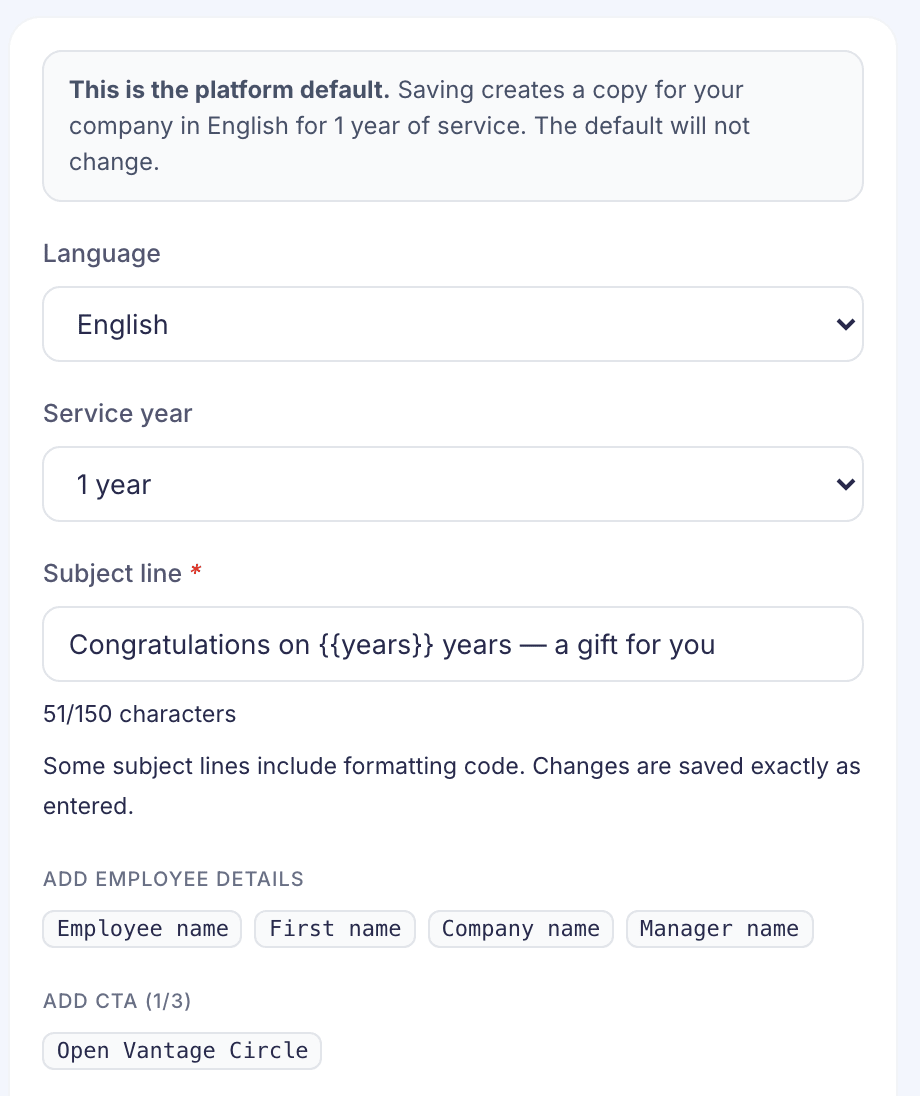
The first time you save an email, a copy is made for your company in that language. The default doesn’t change, and your company uses your copy from then on. You’ll see “Email saved”.
Good to know
- Leaving with unsaved changes asks you to confirm. Switching the language or service year does too, because it loads another saved email.
- Test emails go to your own address. You can send three every 5 minutes. After that you’ll see “Limit reached. Please retry in 5 minutes.”
- With or without points. The note at the top of the page says Recognition picks the version with points when birthday or service-award points are set up. Edit both versions so they match.
Was this helpful? Thanks for letting us know.
What was wrong?