
Set up a recognition wall
Go to Recognition → Recognition wall → Create wall, choose what it shows, then give its link or QR code to whoever sets up the screen. Private posts never appear on a wall.
A recognition wall shows your company’s recognition feed on a TV or office screen, without anyone signing in. Make one wall for each screen. You’ll see Recognition → Recognition wall if your company has the wall and you’re a super admin or an HR admin.
Create a wall
- Go to Recognition → Recognition wall and select Create wall.
- Enter a Wall name that says where the screen is, such as “Pune office reception”.
- Choose the Wall type: Live or Demo. You can’t change it later.
- Under What this wall shows, untick anything you don’t want, such as Greetings or Announcements. Everything is on to start with. For a milestones-only wall, keep just Work anniversaries.
- Under Filter recognition, optionally limit the wall to one value in each of your company’s filters, such as a department or country. Leave a filter blank to include everyone.
- Under Display, choose a Theme (Classic or Premium) and how often it refreshes in Refresh every, from 15 to 300 seconds. 30 suits most screens. You can also add a Banner image URL.
- Under Expiry, set Expires in to the number of days the link should work. New walls expire after 365 days. Enter 0 if it should never expire.
- Select Create wall. You’ll see “Wall created”.
Put it on the screen
Choose Show link from the wall’s menu. Select Copy link and send it to the person who sets up the screen, or let them scan the QR code. They open the link in the TV’s browser and set it as the home page. There’s nothing to install and the wall refreshes itself.
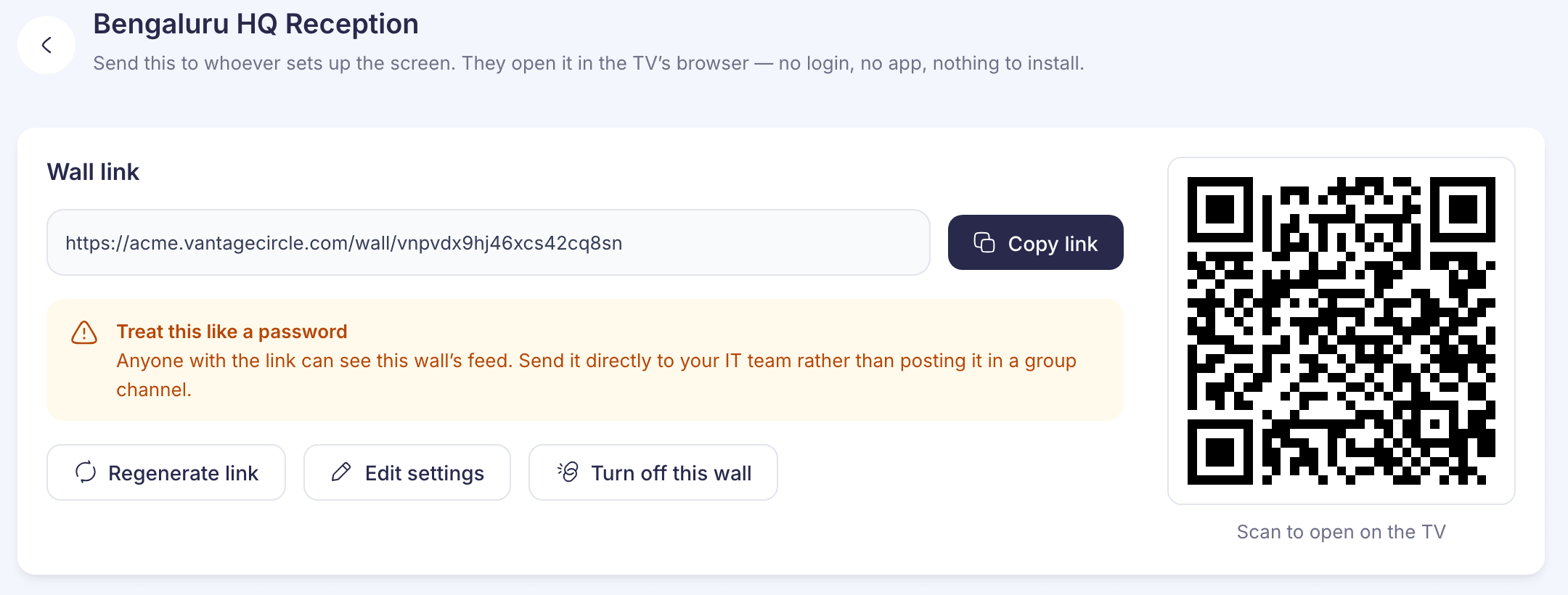
Treat the link like a password. Anyone who has it can see that wall’s feed, so send it directly rather than posting it in a group channel.
What a wall shows
- Shared posts appear with their message.
- Restricted posts appear with the names, but not the message.
- Private posts never appear.
You can’t hide a single post. Use the content types and filters to control what each wall shows.
Keep an eye on your walls
The list shows two things for each wall:
- Screen: Live means a screen has shown the wall in the last 5 minutes. Not seen means no screen has opened it recently. Not showing means the link no longer works because it has expired or been turned off.
- Link: Active, Expired or Turned off, with the expiry date.
From a wall’s menu you can:
- Edit its name, content, filters, display and expiry, then Save changes. Changing Expires in counts the days from today; leave it alone to keep the current date.
- Extend expiry on an expired wall to make its link work again, or use Extend by 1 year while editing.
- Regenerate link if the link has been shared too widely. The old link stops working at once, so send the new one to whoever runs the screen.
- Turn off the wall. The link stops working at once and the screen goes blank. The wall stays in the list as Turned off, and there’s no option to turn it back on.