
Customise the recognition feed
Go to Recognition → Feed setup, turn on the widgets you want, fill them in and select Save changes. Employees see them beside the recognition feed and on the Announcements page.
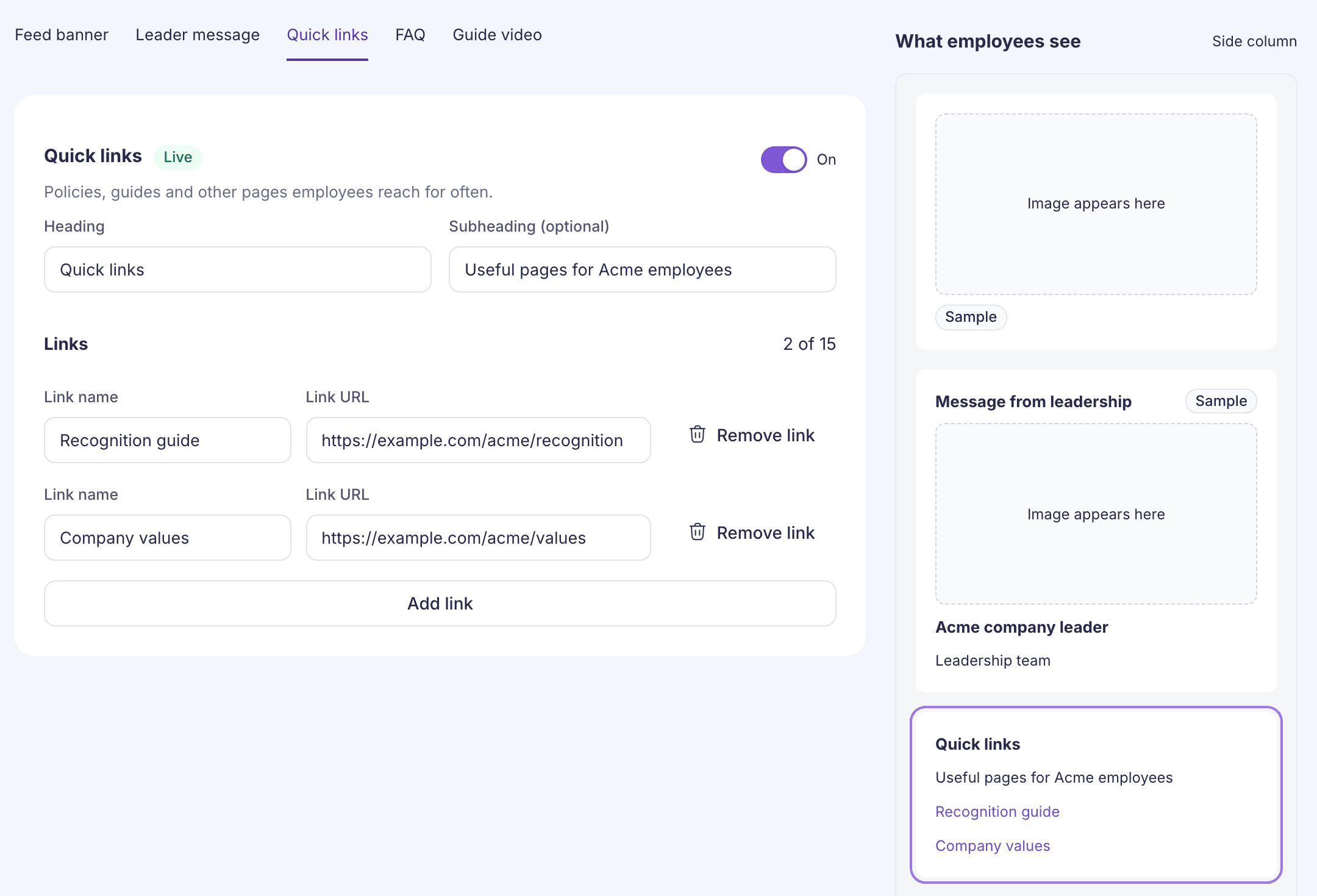
Recognition → Feed setup controls five widgets that employees see beside the recognition feed: Feed banner, Leader message, Quick links, FAQ and Guide video. All except the banner also show on the employee Announcements page. Only super admins can open this page.
If nothing is set up yet, select Start from sample to fill the form with example content you can edit. Sample content isn’t shown to employees until you replace it with your own and save.
- Select a widget’s tab and turn it on with the switch.
- Fill in its fields. The preview on the right, What employees see, updates as you type.
- Repeat for any other widgets.
- Select Save changes. Changes reach employees once they’re saved. To undo unsaved edits, select Discard.
What each widget needs
| Widget | What to add | Needed to save it while it’s on |
|---|---|---|
| Feed banner | Banner image and an optional Link that makes it clickable | An image |
| Leader message | A Video, a Thumbnail, the Leader’s name and their Title | A video |
| Quick links | A Heading, an optional subheading and up to 15 links, each with a Link name and Link URL | At least one link |
| FAQ | A Heading, an optional subheading, the Link text and the Link URL of your recognition FAQ | The FAQ link |
| Guide video | A Video and a Thumbnail that show how recognition works at your company | A video |
A widget that’s on but not finished shows Not set up and a note telling you what to add. For Leader message and Guide video, add a thumbnail as well as the video: employees select the thumbnail to open the video.
Limits
- Images: JPG, PNG, GIF or WebP, up to 2 MB.
- Videos: upload an MP4 up to 100 MB, or select Paste a link and paste a link, such as a YouTube link.
- Every link must be a full link that starts with
https://. - Names and headings: up to 100 characters. Subheadings: up to 300 characters.
Good to know
- Turning a widget off keeps its content. Employees stop seeing it, and everything comes back when you turn it on again.
- New banners sit in the side column. If your company already had a banner at the top of the feed, it stays there.
- If something can’t be saved, the page opens the first widget with a problem. The reason shows under the field, such as “Add an image, or turn this widget off.”
- If an upload fails, you’ll see “Upload failed. Try again.”