
Create a certificate
Go to Recognition → Certificates → Create certificate. Name it, choose what it's for and its layout, upload a background, place the fields, then preview and create it.
A certificate is the printable design attached to an award, a badge or a work anniversary milestone. Only super admins can open Recognition → Certificates. Select Create certificate to start. There are three steps: Details, Design and Preview.
1. Details
- Enter a Certificate name of at least 3 characters, for example “Customer Champion”. Each certificate needs its own name.
- Under Used for, choose Recognition awards and badges or Work anniversaries. Your choice decides which fields you can add in the next step.
- Under Page layout, choose Landscape (297 × 210 mm) or Portrait (210 × 297 mm).
- Upload a background image. Drag it onto the page or select Choose image. JPG, PNG, WebP, GIF, BMP and AVIF work, up to 10 MB. HEIC, TIFF, PDF, PSD and RAW files don’t; save them as JPG or PNG first. Put your company logo in the background image before you upload it.
- Crop the image to fit the page, then select Apply and continue to design.
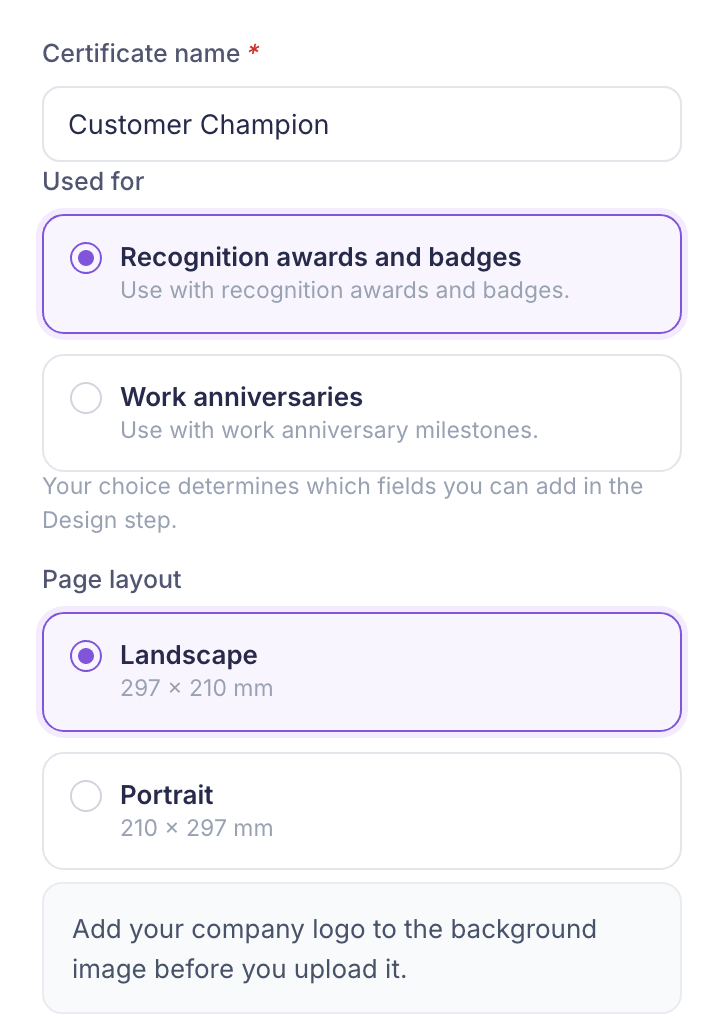
You can’t change Used for or Page layout after the certificate is created. To use another one, create a new certificate.
2. Design
Click a field to add it, then drag it into place on the certificate. Fields are filled in with real details when the certificate is issued. For awards and badges, they include Awardee, Reward name, Recognition message and Issued date. For work anniversaries, they include the number of years completed.
Select a field to change its font, size, colour, alignment or line spacing. For a date field, choose a Date format. You need at least one field before the certificate can be saved.
3. Preview
The preview fills the fields with example details. Check it, then select Create certificate. You’ll see “Certificate created”.
After you’ve created it
- Use it. Choose the certificate on the Certificate step when you create or edit an award or badge, or a service milestone award. Service milestone awards only offer certificates made for Work anniversaries.
- Edit it. Select it in the list, or choose Edit from its menu, then Save changes.
- Download it. Choose Download PDF from its menu to get a PDF of the last saved version.
- Delete it. Choose Delete and confirm. If active recognition items still use it, you’ll see “This certificate is still in use”. Remove it from each of them first.