
Give points to many employees with a CSV file
Go to Rewards Hub → Reward points → Award points, choose the upload type, fill in the CSV template and select Submit for approval. No points move until an approver approves the batch.
Go to Rewards Hub → Reward points and open Award points. Submitting a file creates a batch for approval. No points are issued until the uploader’s approver approves it.
Before you start
- Make sure you have an approver. If nobody is assigned to approve your uploads, the batch goes to a default approver at Vantage Circle and won’t show in anyone’s Approvals tab at your company. See Choose who approves points uploads.
- Super admins, HR admins and assigned uploaders can submit a file. Anyone else sees “You are not authorized.”
Upload the file
-
If you see Wallet, choose the balance the points come out of. It only shows if your company has more than one wallet. Wallets other than the rewards wallet only offer Points CSV with custom email.
-
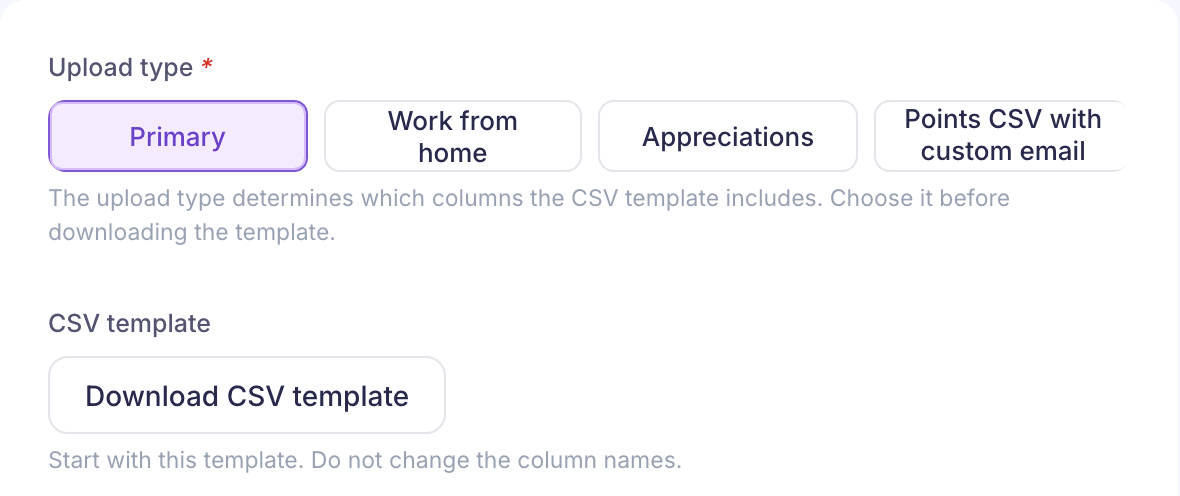
Choose the Upload type:
- Primary for ordinary points.
- Work from home, if your company has a work-from-home programme.
- Appreciations to post appreciations in bulk. They carry no points, so the template has no points column.
- Points CSV with custom email to send one of your own email templates with the points.
-
If you see Country, choose the country the recipients belong to. Everyone in the file must be in that country. It starts on your own country.
-
Select Download CSV template. The columns depend on the upload type, so choose the type first. Don’t change the column names.
-
Fill in one row per employee and save it as a CSV file. Give the file a name you haven’t used before.
-
Drag the file into CSV file or pick it from your device. The first rows show on the right so you can check them.
-
Turn Email each employee on or off. Your company sets whether it starts on for each upload type.
-
For Points CSV with custom email with the email on, pick an Email template. Leave it on Use the default template if you haven’t made one in Rewards Hub → Emails.
-
Select Submit for approval.
You’ll see “Batch submitted”. The approver gets an email saying a batch is waiting.
If something goes wrong
If the file can’t be used, you’ll see “We could not use this file” with the reason. Fix the file and submit it again. Common messages:
- “The selected file is already submitted for processing”: a file with the same name was uploaded before. Rename the file.
- “Error in row 4: Points not found or not an integer”: points must be whole numbers.
- “Error in row 4: receiverEmployeeId Not found or invalid domain”: the employee ID or email doesn’t match anyone at your company.
- “Error in processing file, please check the sample file format.”: the columns don’t match the template.
- “Please split the file in a batch of 500”: an Appreciations file can have up to 500 rows.
If your company takes uploaded points out of budget holders’ budgets, the approval can fail with “Insufficient balance for :” followed by the holder. Top up that budget, then ask the approver to try again.
After approval
- Points are added in the background after the approver confirms.
- People who haven’t signed up yet get their points once they register.
- People who are in a different country from the one you chose don’t get the points.
- If Email each employee was on, each person gets an email.
- If your company has points expiry turned on, the points carry an expiry date. See How reward points work.
To take back points sent by mistake, see Take back points from an award.