
Read and tag comments
Pulse → Comments lists every written comment with its sentiment, topic and department. Filter the list, mark comments read, tag them and reply. Employee names aren't shown, except on exit surveys.
Go to Pulse → Comments. Pick the surveys with Survey type and Survey at the top, then narrow the list with Department, Category and Tags.
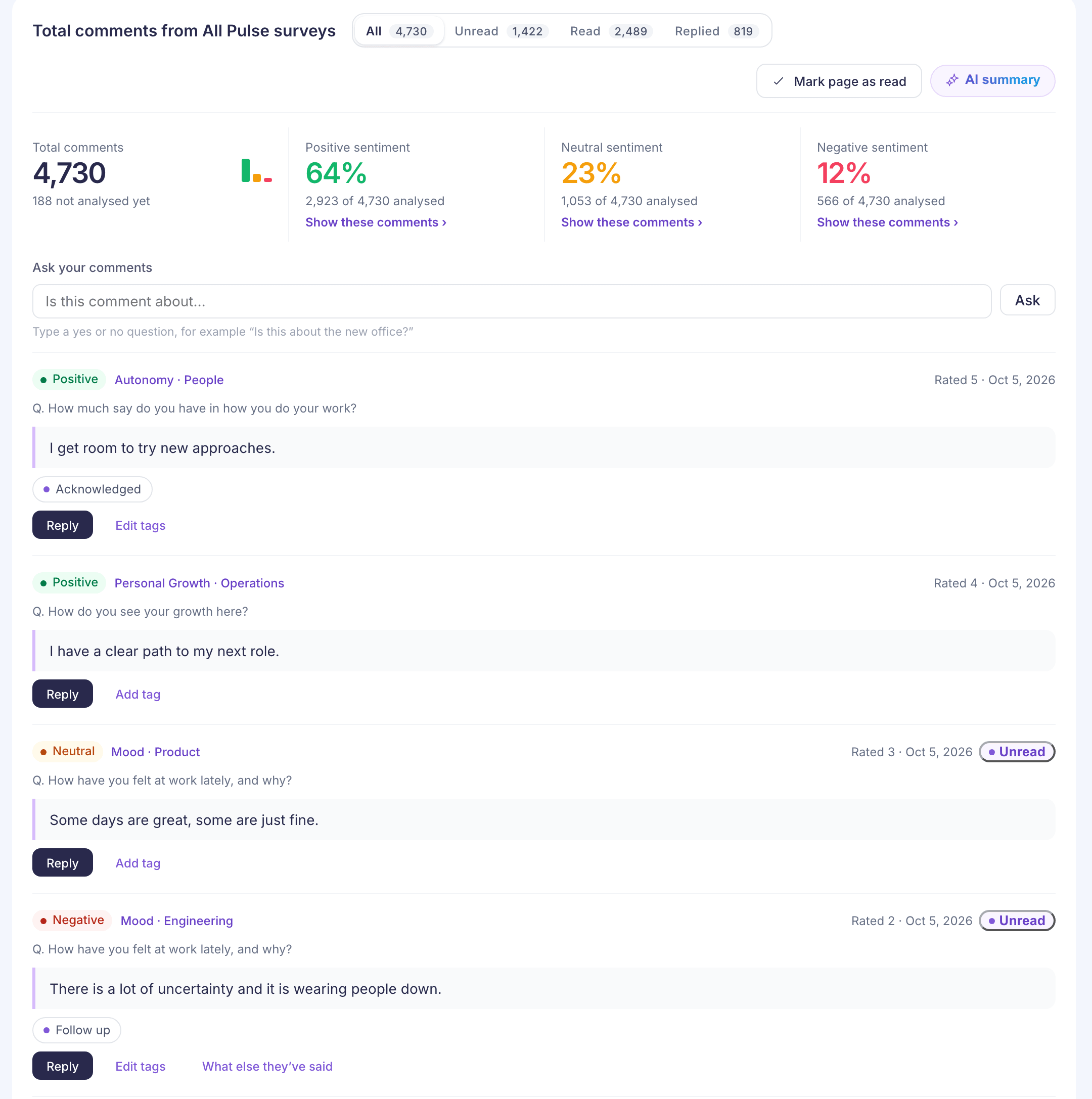
Find the comments you need
- All, Unread, Read and Replied split the list by what you’ve done with each comment.
- The Positive sentiment, Neutral sentiment and Negative sentiment tiles show each share. Select one to see only those comments. Sentiment is set by AI. See How AI sentiment and summaries work.
- Ask your comments finds comments that answer a yes or no question, such as “Is this about the new office?”.
- Select a comment’s topic, such as Mood · Engineering, to filter by that category.
Each comment shows its sentiment, its topic and the person’s department, the rating they gave, the date, the question and their words.
Mark comments read
New comments carry an Unread label. Select it to mark that comment read, or select Mark page as read for every comment on the page.
Tag a comment
- Select Add tag, or Edit tags if the comment has some.
- Pick tags from the list. When AI has a suggestion, it’s at the top under Suggested by AI.
- To make a new tag, type a New tag name of up to 40 characters and select Create.
- Select Apply tags.
Tags help you find comments again with the Tags filter. You can also add tags in Pulse → Settings. See Pulse settings.
Reply to a comment
Select Reply. The employee’s name stays hidden, and they’re told by email. See Reply to comments with AI help.
What else they’ve said
Negative comments have a What else they’ve said link. It shows the same person’s other written answers in this survey, and their negative comments from earlier surveys. Their name and profile aren’t shown. The responses are linked with an internal employee ID, and the screen asks you to treat them as sensitive.
What you can and can’t see
- Names aren’t shown on this page, but each comment shows the person’s department. In a small department, that can be enough to tell who wrote it.
- Exit surveys are different. Their comments have View full response instead, which shows the person’s name, email, country, department, designation, location, reporting manager and last working day. You can’t reply to or tag exit comments.
If something goes wrong
“Comments are not available for your role” Reporting managers can’t open Comments yet. See “Analytics is not available for your role”.
Only a few comments show, with an upgrade note On Pulse Lite, the list shows 3 comments. The note reads, for example, “Pulse Lite shows 3 of 40 comments. Upgrade to Pulse Pro to see all feedback.”
“Comment could not be marked as read. Try again.” The label stays Unread. Select it again.